
Your hosted Windows session is a workspace running on a server, displayed through a client on your own computer. The application, company dataset and Windows account belong to that remote environment. Understanding that separation helps you connect to the right system, handle files correctly and explain a problem when something fails.
For a Netcloud24 Managed service, our team prepares the agreed Windows environment, user accounts and connection arrangements before handover. You are not expected to build the Remote Desktop service or adjust server firewall settings yourself. Follow the supplied access instructions; this guide explains the user’s connection and verification steps.
Recognise the connection arrangement you have received
Your handover should identify the destination, your individual Windows username and any VPN or gateway requirement. A connection may use a direct server name, an approved connection file or a managed workspace. These are different access arrangements, so do not replace a supplied gateway configuration with an IP address found elsewhere.
Keep the server sign-in separate from your customer-portal login. The same organisation may manage both, but the credentials are not automatically interchangeable. Account formats can also differ: a domain identity might resemble BUSINESS\sam, whereas a local identity belongs to one particular server. Use the exact format provided rather than guessing from an email address.
If connection information is missing, ask the authorised service contact to obtain it. Avoid borrowing another employee’s account to get started. Individual identities allow permissions and access changes to follow the person who needs them.
Start a session from Windows
First establish the approved VPN connection if one is required. Complete its authentication and leave it connected while working. A working internet browser does not prove that a private server route is available.
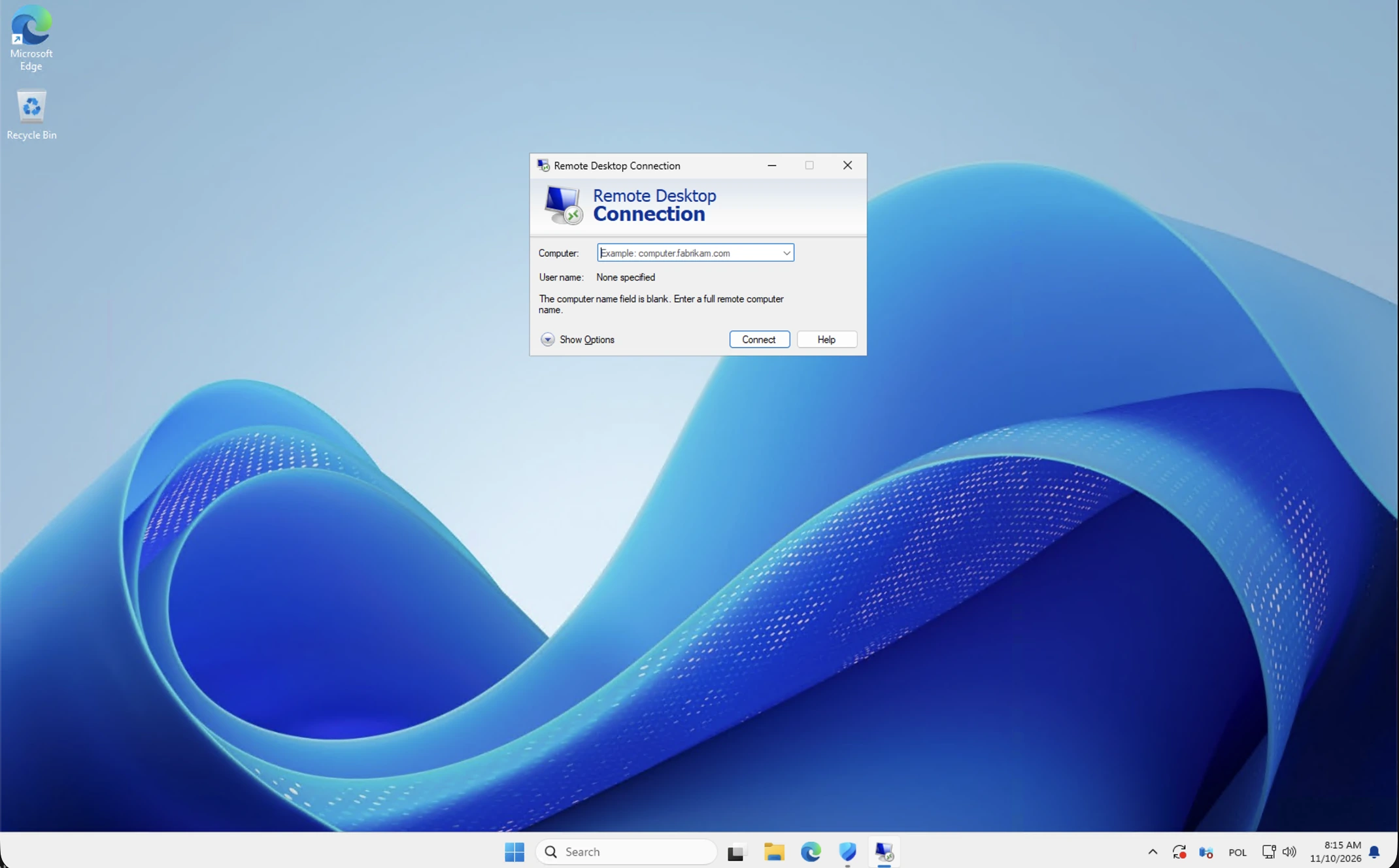
- Open the built-in Remote Desktop Connection application from Start. You can also open Run and enter
mstsc. - Enter the destination supplied at handover, or open the approved connection file. Check its displayed target before connecting.
- Review the selected account. If Windows has remembered another identity, choose the option to use the correct account.
- Review Local Resources where necessary. Allow only the clipboard, printers and local drives that your organisation approves for the work.
- Connect and enter the password through the sign-in prompt. Verify the remote identity before accepting a certificate prompt.
A gateway can have its own authentication requirements, separate from Windows sign-in on the destination. Use the settings supplied by the service team. Removing that gateway because direct access looks simpler can bypass an intentional part of the connection design.
Start a session from a Mac
Use Microsoft’s supported Windows App from the Mac App Store. Microsoft has changed client names and connection options over time, so avoid old download links for discontinued packages. Adding a remote PC is different from subscribing to a workspace; select the method matching the handover.
For an approved remote-PC connection, add the supplied hostname, give the saved entry a recognisable label and enter any required gateway details. Choose whether credentials should be requested each time according to your device policy. On a shared Mac, do not leave the server password saved for the next person.
Inspect display, audio and folder-redirection options before starting. Grant macOS permissions only where the required feature needs them. If a keyboard shortcut behaves differently, check the client’s keyboard configuration before assuming that the application on Windows is broken.
Check the workspace before doing live work
Confirm that the expected application and company dataset are available. Open a representative permitted folder and check that the normal workflow works. Printing, imports and exports can cross the boundary between your local device and the remote server, so test those features with harmless sample information first.
Where an administrator needs a basic identity check, hostname shows the Windows computer name and whoami shows the current account. Ordinary users can use the application and access information provided at handover without opening administrative tools.
Report another user’s private data, unexpected administrator privileges or an unfamiliar company dataset. Access that is broader than intended is an issue even if it makes the desktop seem convenient. Do not copy files to a personal device to work around an unexplained permission problem.
When saving a document, check whether the destination is a server folder or a redirected local drive. Similar-looking folder names can refer to different computers. Follow the organisation’s storage rules so the authoritative copy remains in the intended managed location and receives the appropriate protection.
Read the error as a clue
No connection or a timeout: check the approved VPN, exact destination and your local connectivity. State whether other authorised users can connect. If everyone fails through the same route, that is useful evidence about a shared dependency.
A password or account rejection: check the account format, keyboard layout and whether the expected identity is selected. Stop repeated attempts when the supplied details appear correct. More guesses can lock the account without helping diagnose the original failure.
A changed certificate warning: record the displayed identity and contact the service team through the known portal. A planned renewal may explain a change, but users should not be trained to accept every unfamiliar name automatically.
A desktop that opens but feels slow: distinguish delayed typing and screen updates from a single slow report or application task. Give support a specific example and time. Changing security settings is not an appropriate user-level performance test.
Leave the session in the right state
Disconnecting generally leaves the Windows session available for reconnection, subject to service policy. Signing out ends it and closes its applications. Save work and follow the application owner’s instructions for long-running processing; closing a client window is not a guaranteed way to keep a critical job running indefinitely.
For support, provide the server or service reference, Windows or macOS version, client version, exact error and time with time zone. Note the last successful session and whether the issue affects one person or several. Never send the password or a connection file containing credentials in an ordinary ticket.
See the shared security responsibilities guide and how to prepare a support request. Microsoft’s Windows App connection documentation covers supported client connection types.
 From order to handover: what a Managed Windows VPS includes
Understand how Netcloud24 prepares a Managed Windows environment, what deployment information is needed and how licensing, application…
 Which Windows Server release should host your business software?
Choose Windows Server around the complete business application, support horizon and tested workflow. Understand the release options,…
 Your first Windows VPS sign-in: a visual Remote Desktop walkthrough
Open your prepared Windows workspace using the supplied Remote Desktop destination and individual account. Follow the illustrated prompts,…
 NetCloud24 Free Hosting: 5 GB, DirectAdmin, SSH & Node.js
NetCloud24 H1 gives you 5 GB of free web hosting storage, your own domain, DirectAdmin, SSH access and Node.js. There are no compulsory…
