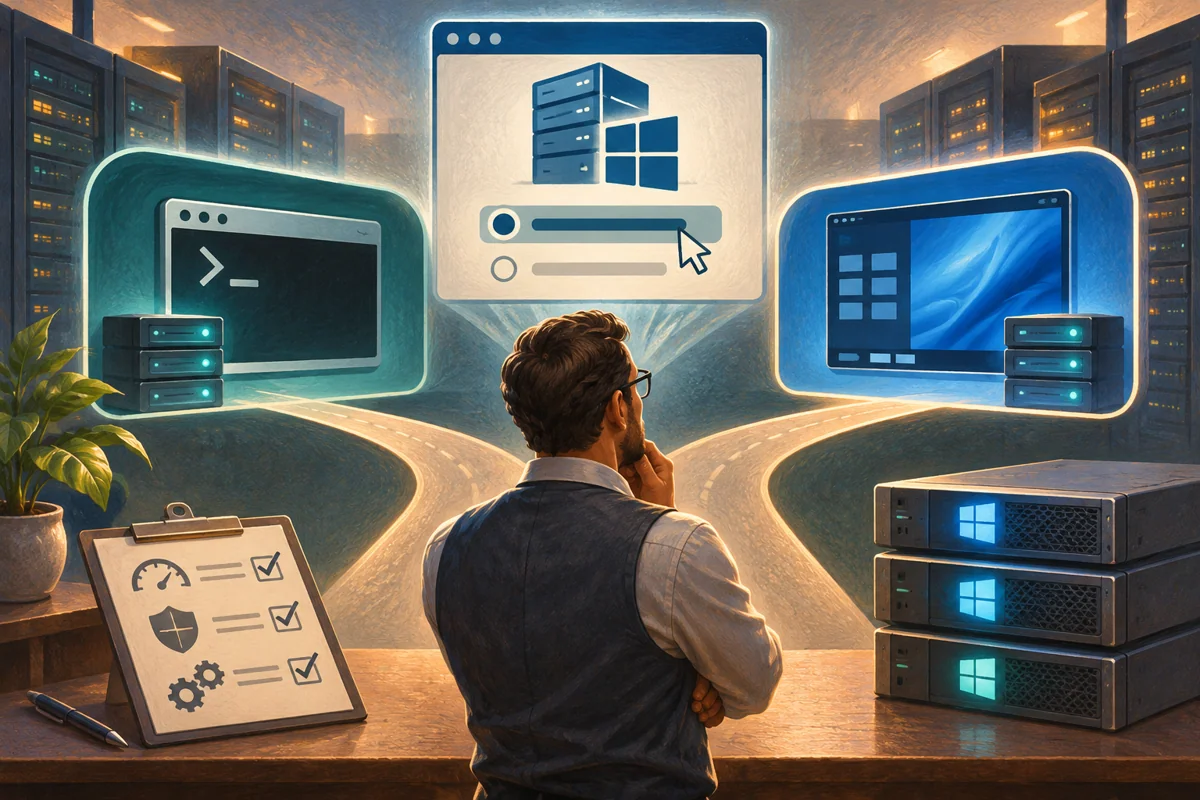
Choosing Core or Desktop Experience determines more than what an administrator sees at sign-in. It affects local tools, supported application components and the procedures available during an outage. The right choice allows the workload and the people supporting it to operate within a tested design.
Both options exist for supported Windows Server 2019, 2022 and 2025 editions. Netcloud24 selects and prepares the agreed option for a Managed deployment after reviewing its requirements. Customers need to explain the software and workflow; they are not expected to assemble the Windows interface themselves.
Ask what must run on the server
Begin with the application and role requirements. Is this an infrastructure service, an interactive business application or a combination? Check the exact vendor release, installation dependencies and maintenance utilities.
Core removes the full local graphical desktop and is managed through commands, SConfig and supported remote tools. Desktop Experience includes the graphical server environment. Both still require security controls, updates, backups and competent administration.
A background service can suit Core while a vendor updater or reporting tool needs components it lacks. Check the complete operational lifecycle, not only whether the main service starts after installation.
Separate the interface from other product choices
The release year identifies a Windows Server generation. Standard and Datacenter identify editions. Core and Desktop Experience identify installation options. A decision in one category does not answer the others.
For these releases, the interface cannot be switched in place after installation. A clean rebuild and migration or recovery are required. The choice should therefore be reviewed before business data and role configuration accumulate on the system.
Do not follow much older Windows Server instructions that describe adding or removing the entire graphical interface as an ordinary feature change. They do not provide a supported conversion procedure for 2019, 2022 or 2025.
Evaluate compatibility before footprint
Core’s reduced component set can reduce the software surface to maintain. That is useful where the workload is supported and the team can operate it. It does not make an unconfigured server secure, guarantee faster application performance or remove patching responsibility.
Desktop Experience is appropriate when supported software requires graphical components or interactive desktop use. It can still be administered remotely and automated through PowerShell; graphical installation does not force every task to be performed manually.
A shared application delivered to employees needs a supported RDS design and suitable licensing. Core is not an alternative employee desktop merely because an administrator can connect to it remotely.
Map ordinary and emergency administration
List how the team will install components, inspect events, rotate certificates, maintain applications and check storage. Then list emergency tasks, such as correcting DNS, restoring data or diagnosing a service after an update.
For Core, confirm the remote tools support those tasks and document command-line fallback. RSAT, Server Manager and Windows Admin Center can supply supported graphical administration from another machine, but their availability depends on networking, authentication and permissions.
Keep console access and approved recovery credentials independent of the normal domain path. If DNS or trust fails, a remote management shortcut that relies on them may also fail. Another authorised administrator should be able to follow the documented fallback.
Desktop Experience also needs a recovery console and a management plan. A familiar interface is not protection against a failed network route or incorrect account permissions, and it should not become a place for ordinary browsing under an administrator account.
Use optional compatibility components for defined needs
The Server Core Application Compatibility Feature on Demand adds selected binaries and management tools. Its contents vary by release. It can address documented requirements without supplying the full Desktop Experience.
Confirm the specific component and vendor support before adding it. An application whose vendor requires the full graphical installation does not become supported simply because its installer progresses after an optional package is installed.
Record the dependency and maintenance implications. A later administrator needs to know why the package exists, which tool relies on it and whether an operating-system upgrade requires it to be provisioned again.
Inspect an existing server objectively
Use read-only Windows PowerShell queries rather than inferring the installation option from shortcuts or an unfamiliar session:
Get-ItemProperty 'HKLM:\SOFTWARE\Microsoft\Windows NT\CurrentVersion' |
    Select-Object ProductName, InstallationType
Get-CimInstance Win32_OperatingSystem |
    Select-Object Caption, Version, BuildNumber
Record the installation type alongside the release and edition. To inventory roles in built-in Windows PowerShell, use:
Get-WindowsFeature | Where-Object Installed |
    Select-Object Name, DisplayName
The installed list is evidence about components, not proof that their configuration or application stack is supported. Compare it with the approved design and the vendor’s actual requirements.
Test a candidate before making it production
Create a representative environment with the intended release, option, patch state and supported dependencies. Use safe application data and prevent test integrations from creating live external transactions.
Exercise ordinary client work and less frequent maintenance. An application may run correctly while its certificate-replacement procedure or recovery tool assumes an unavailable local component.
Have another authorised operator perform a recovery-access test. A technically suitable Core build that only one person can manage is not operationally complete. Record the commands or remote tools used and the acceptance result.
Include support cover in the choice. If an external vendor will maintain the application, confirm which remote tools and installation option it supports before selecting an image. A design accepted by the internal administrator can still be impractical when the vendor’s documented maintenance procedure requires a different environment.
Revisit the decision when the role changes
A server built for one infrastructure role may be unsuitable for a later request to host an unrelated graphical application. Review the architecture instead of adding components until the application seems to run. Combining functions also changes privileges, capacity and recovery requirements.
If the installed option is wrong, plan a replacement and preserve the current workload through a tested migration. Returning to an older instance after new transactions are created may require reconciliation, not merely reconnecting users.
Document the selected option, support evidence, management tools and recovery owner. For the release choice, see Windows Server version planning. Microsoft’s installation-option comparison and compatibility-package guidance provide the technical boundaries.
 Deploying Windows Server 2025 with a graphical desktop
Build Windows Server 2025 Desktop Experience through a controlled clean installation. Protect disks, select the correct image and licensing…
 Building a manageable Windows Server 2022 Core instance
Plan and install a supportable Windows Server 2022 Core instance. Verify workload fit, image and storage, then establish SConfig, remote…
 A supported clean build of Windows Server 2019 Desktop Experience
Create a justified Windows Server 2019 graphical deployment with protected disks, correct media and verified servicing. Accept the…
 Establishing a Server Core baseline with the SConfig menu
Establish a coherent Server Core baseline using SConfig. Prepare identity, networking, membership, maintenance and access decisions, then…
 Planning and verifying a Windows Server hostname change
Treat a Windows Server rename as an identity change. Review dependencies, reserve the name, control the reboot and verify DNS, trust,…
