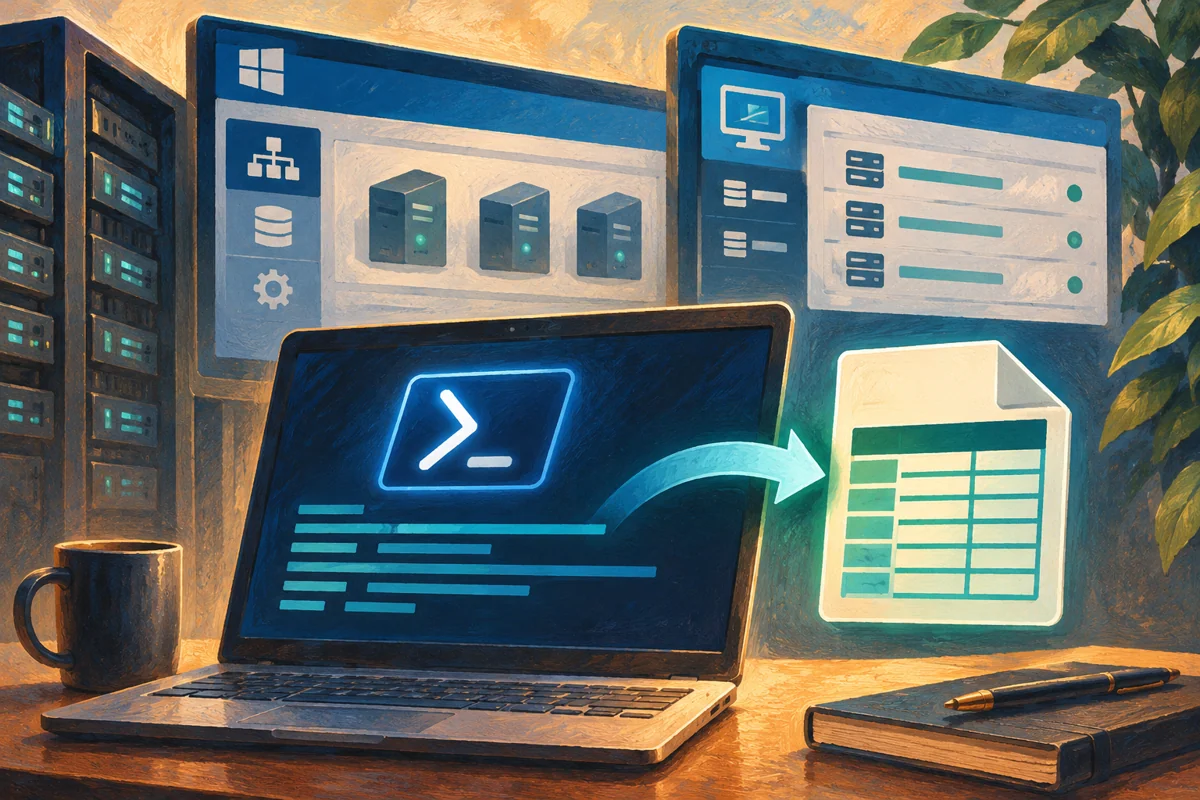
A useful Windows Server inventory is a dated evidence set, not just a list of machines that happened to answer a query. It should identify the requested target, the computer that actually responded, the collected properties and any failures. That makes the report suitable for migration planning, role review and capacity discussions without making unreachable servers silently disappear.
This procedure builds a small read-only inventory with Windows PowerShell and remote CIM queries. It records OS, hardware summary, boot time and installed Windows features. It is not a vulnerability assessment, licensing audit or complete application dependency map. Extend it only with fields that support a defined operational decision.
Define scope and access before collecting
Prepare a reviewed text list of fully qualified server names, one per line. Use an authoritative asset or application list rather than an unrestricted scan of every address. Include production, recovery and management systems only where the inventory request authorizes them.
Choose an administrative workstation or management server with the required PowerShell and Windows management tools. The collection identity needs permission to perform the selected remote queries. Use the organization's approved administrative access model; do not grant permanent local administrator membership across the estate just to produce a one-time spreadsheet.
Confirm DNS, routing, authentication and remote-management access on one pilot. A successful test from your desktop does not prove a scheduled inventory account will have the same permissions. If this will become a recurring job, validate the unattended identity and store its credentials through the approved mechanism.
Choose consistent fields and units
Record the requested target and actual hostname separately. This catches aliases and stale DNS records. Include collection time in UTC, OS caption and build, total memory in GiB, logical processor count and last boot time. Add installed Windows feature names where the ServerManager module is supported on the target.
State units explicitly. A raw memory byte count and an unlabeled rounded number are easy to misinterpret. Logical processors do not necessarily equal physical cores or licensed cores. For virtual machines, these fields describe the guest's view rather than the physical host's complete capacity.
Boot time can support an uptime discussion but does not establish patch compliance. An OS build requires interpretation against the relevant release and servicing history. Keep the report's observations distinct from conclusions that need a separate policy or reference dataset.
Prepare protected input and output folders
Create an approved working folder with access limited to the inventory operators. The example uses C:\Admin\Inventory and an input file named servers.txt. Replace these with real controlled locations. Inventory can reveal internal names, operating systems and role assignments, so avoid placing the output on a broadly readable share.
Use a dated filename so a new run does not silently replace the previous baseline. Keep the input list with the output, including a record of who approved the scope. Retain the collection time range and any retry list so an analyst can distinguish a genuinely missing server from a machine that was simply unreachable during this run. Do not include passwords, connection-string secrets or private keys in an inventory just because the collector can read them.
Collect one result for every requested server
The following example runs sequentially to keep behavior easy to review. Each target produces either a successful row or an explicit error row. The remote block is read-only and stops on query failures rather than presenting partial data as a fully successful record:
$targets = Get-Content 'C:\Admin\Inventory\servers.txt' |
    ForEach-Object { $_.Trim() } |
    Where-Object { $_ } | Sort-Object -Unique
$rows = foreach ($target in $targets) {
    $collected = [DateTime]::UtcNow.ToString('o')
    try {
        $data = Invoke-Command -ComputerName $target -ErrorAction Stop -ScriptBlock {
            $os = Get-CimInstance Win32_OperatingSystem -ErrorAction Stop
            $cs = Get-CimInstance Win32_ComputerSystem -ErrorAction Stop
            $features = Get-WindowsFeature -ErrorAction Stop |
                Where-Object Installed | Select-Object -ExpandProperty Name
            [pscustomobject]@{
                ActualName = $env:COMPUTERNAME
                OS = $os.Caption
                Build = $os.BuildNumber
                MemoryGiB = [math]::Round($cs.TotalPhysicalMemory / 1GB, 2)
                LogicalProcessors = $cs.NumberOfLogicalProcessors
                LastBootUtc = $os.LastBootUpTime.ToUniversalTime().ToString('o')
                Features = $features -join ';'
            }
        }
        [pscustomobject]@{
            Target=$target; CollectedUtc=$collected; Status='Success'
            ActualName=$data.ActualName; OS=$data.OS; Build=$data.Build
            MemoryGiB=$data.MemoryGiB; LogicalProcessors=$data.LogicalProcessors
            LastBootUtc=$data.LastBootUtc; Features=$data.Features; Error=''
        }
    } catch {
        [pscustomobject]@{
            Target=$target; CollectedUtc=$collected; Status='Failed'
            ActualName=''; OS=''; Build=''; MemoryGiB=''; LogicalProcessors=''
            LastBootUtc=''; Features=''; Error=$_.Exception.Message
        }
    }
}
$stamp = Get-Date -Format 'yyyyMMdd-HHmmss'
$rows | Export-Csv "C:\Admin\Inventory\Servers-$stamp.csv" `
    -NoTypeInformation -Encoding UTF8
Run it first against a small reviewed list. The ServerManager module must be available in the remote Windows PowerShell environment. On a target without the required cmdlets, the failure row is expected diagnostic evidence; do not replace it with a fabricated empty feature list labelled successful.
Verify completeness before interpreting the CSV
Compare the number of output rows with the deduplicated input count. Summarize success and failure states, then inspect failures individually:
$rows | Group-Object Status | Select-Object Name,Count
$rows | Where-Object Status -EQ Failed | Select-Object Target,Error
$rows | Where-Object Status -EQ Success |
    Select-Object Target,ActualName,OS,Build
Check several successful rows against the corresponding server or trusted asset record. Look for unexpected hostname differences, implausible memory values and old boot times. A technically valid CSV can still contain the wrong targets if the input or DNS is stale.
When opening the file in a spreadsheet, import fields with suitable types. Keep build numbers and identifiers as text where numeric conversion could alter meaning. Preserve the original CSV as evidence and make analysis changes in a separate working copy.
Add storage or software inventory as separate datasets
For disks, use a normalized report with one row per server and volume, including a stable volume identifier, mount path, capacity and free-space units. A single “free space” column for an entire server can conceal the system volume that is nearly full. Include mount-point-only volumes where they matter.
For installed applications, use supported package or registry inventory methods appropriate to the application technology. Avoid using Win32_Product as a casual estate-wide query: it can trigger Windows Installer consistency checks and does not provide a complete inventory of all software types. Application owners and deployment systems often provide better evidence.
Keep role and application records separate when their collection times or success states differ. This avoids a report that appears complete because one successful hardware query masked a failed application query.
Troubleshoot failures without weakening the environment
Name-resolution errors require checking the target list and DNS. Transport failures require checking routing, firewall and WinRM. Access denied requires reviewing the collection identity, endpoint permissions and policy. A failed remote module import requires checking the target environment and tooling.
Retry only after addressing the relevant cause and retain the original failure record. A later successful collection should carry its own timestamp so readers know the inventory spans more than one moment. For large estates, introduce controlled concurrency, timeouts and resource monitoring after the small sequential version is understood.
Retain a report people can trust
Record the collection scope, script version, time range, known omissions and interpretation limits. Restrict access and apply the organization's retention rules. Deleting the report has no server rollback consequence because the queries are read-only, but temporary access grants or scheduled jobs created for collection need separate cleanup.
Microsoft's CIM query reference, feature inventory reference and CSV export documentation describe the building blocks used here.
Related procedures
How to Plan an In-Place Upgrade to Windows Server 2025; How to Add Multiple Windows Servers to a Server Manager Pool; How to Troubleshoot WinRM and Kerberos Errors in Server Manager.
 How to Add Multiple Windows Servers to a Server Manager Pool
Adding servers to a Server Manager pool gives one administration console a set of machines to discover and display. It does not join…
 How to Create Custom Server Groups in Server Manager
Custom Server Manager groups organize an existing server pool into views that match operational work. A group can represent an application,…
 How to Manage Windows Server Roles Remotely with Server Manager
Server Manager can install and remove Windows Server roles remotely, avoiding an interactive desktop session on every target. The remote…
 How to Troubleshoot WinRM and Kerberos Errors in Server Manager
A Server Manager error can arise before the target is reached, during authentication or after authentication when a management operation is…
