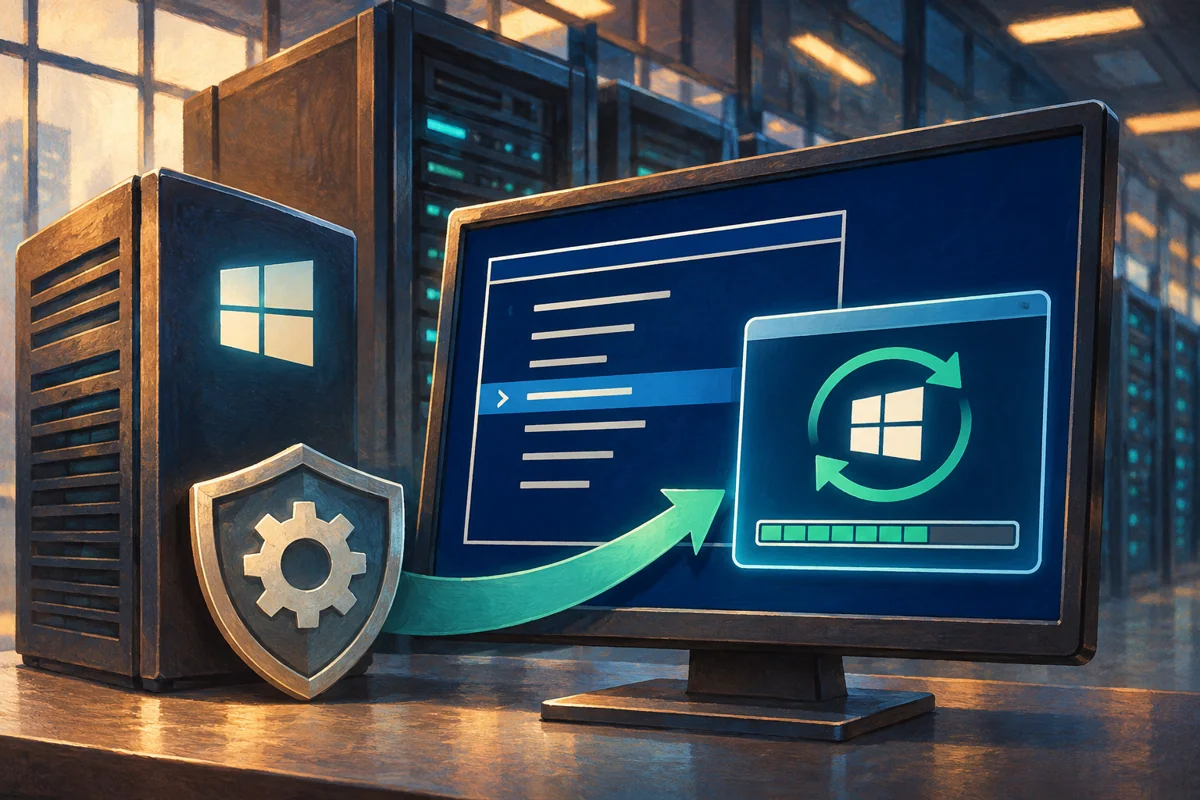
Installing updates is a maintenance workflow with a beginning and an acceptance decision. On Server Core, SConfig provides the interactive scan and installation steps, while the administrator remains responsible for coordinating service impact, restarts and validation.
This guide covers Windows Server 2019, 2022 and 2025 for authorised administrators. Netcloud24 prepares the agreed Managed environment and customers should coordinate operational changes through the service team. They are not expected to install Windows patches themselves before reporting a service problem.
Define the maintenance outcome
Identify the relevant Windows release, role and update-management policy. Review the applicable release notes and known issues. A cumulative update for one server generation is not interchangeable with another, and a newer operating-system offer is not an ordinary monthly patch.
Confirm who can approve downtime and who will validate the application. Check active users, databases, scheduled processing, integrations and backups. A quiet console does not show every background job.
Agree how work will be drained or paused. For redundant services, use the role-aware sequencing that preserves availability instead of rebooting every node together because they share an update window.
Prepare recovery and a pre-change record
Verify appropriate backups and recovery instructions before installation. A domain controller, clustered role or database can need a specialised recovery method. Do not assume an arbitrary snapshot is a universal rollback.
Keep independent console access and record the initial build and storage state:
Get-CimInstance Win32_OperatingSystem |
    Select-Object Caption, Version, BuildNumber, LastBootUpTime
Get-Volume | Select-Object DriveLetter, HealthStatus, SizeRemaining, Size
Get-HotFix | Sort-Object InstalledOn -Descending |
    Select-Object -First 10 HotFixID, InstalledOn
Get-HotFix supplies supporting history, not a complete inventory of every servicing package, driver or application update. Keep the full build and management-platform evidence alongside it.
Resolve insufficient space and unrelated pending maintenance through supported procedures. Deleting servicing folders indiscriminately can damage future maintenance without addressing the reason the disk filled.
Use the configured update process
Open SConfig in an approved interactive administrative session:
SConfigThe menu normally starts automatically on Windows Server 2022 and 2025 Core; 2019 commonly needs a manual launch. Use the displayed option labels because menu presentation differs between releases.
Review Update Settings and the governing policy. Do not switch a centrally managed server to another update source or leave it in manual mode as an incidental troubleshooting measure. The team must retain a defined owner for future patching.
Core does not provide the usual graphical notification workflow. Pending downloads and restarts need management reporting or another explicit operational check, not an expectation that someone will notice a desktop message.
Scan and select the approved batch
Choose the download-and-install option, then the search category consistent with policy. The scan uses the configured source and product approvals. A different result from another server can be explained by release, components or management scope.
Read the update identifiers and descriptions before selecting them. Keep optional drivers, components or operating-system upgrades outside the batch unless they have been separately assessed. Selecting everything is not a substitute for knowing the maintenance scope.
Start the chosen installation and allow servicing to progress. If it appears slow, inspect the operation and relevant evidence before interrupting it. Repeated restarts during an active servicing operation can worsen recovery.
Record the result, failed update identifiers and exact error messages with timestamps. A concise failure code provides more diagnostic value than a general statement that updates did not work.
Complete required restarts deliberately
Read restart prompts and confirm the application is ready. Save work and follow the agreed shutdown or drain procedure. Keep the console available while boot-time servicing finishes.
After startup, verify the build and last boot time again. Check required application services against their baseline. Do not start every stopped Windows service: many are deliberately demand started.
Where the procedure calls for another scan, perform it after prerequisites and restarts complete. Some updates become applicable later. An empty scan from one source is useful evidence but not proof of every possible compliance requirement.
Test what users actually rely on
Use a representative client and ordinary account where appropriate. For a hosted desktop application, test sign-in, the correct dataset and a meaningful report or save operation. For a DNS or file role, validate its actual client service rather than only local status.
Confirm integrations and scheduled processing return to the intended state. Check monitoring and backup health after the restart so a service that looks available does not remain without protection.
Have the designated owner accept the result and record unresolved exceptions. A successful Windows Update status is one part of the evidence, not the whole application acceptance decision.
Investigate failures by category
If no updates appear, check source availability and approval policy. If downloads fail, examine DNS, proxy and approved network access. Do not disable certificate checks or open broad firewall access to force a download.
For installation errors, preserve the update identifier and inspect relevant servicing information, including CBS and WindowsUpdateClient events. Establish storage and prerequisite state before resetting caches or services.
If the application fails after an update, compare its errors and dependencies with known issues. A delayed service or changed policy is different from a demonstrated update regression. Avoid removing packages without establishing the cause.
Keep maintenance exceptions specific. If a vendor asks to delay one update, record the affected package, reason, mitigation and review date. Avoid leaving the entire server on an indefinite manual policy without an operational owner. Check that unrelated approved security updates still have a defined path to installation and verification.
Recover through the particular update’s supported method
Not every update is uninstallable, and recovery can depend on the role and servicing state. Use the documented method for the actual package. A blanket command that removes the newest update is not a safe default.
If recovery requires restoring or replacing the server, preserve current transactions where possible and validate the recovered application. Record a retest or mitigation plan; leaving the machine indefinitely unpatched does not close the maintenance issue.
Keep the final build, restart result, tests and outstanding actions in the maintenance record. See ongoing update settings, recovery planning and Microsoft’s SConfig documentation.
 Deploying Windows Server 2025 with a graphical desktop
Build Windows Server 2025 Desktop Experience through a controlled clean installation. Protect disks, select the correct image and licensing…
 Building a manageable Windows Server 2022 Core instance
Plan and install a supportable Windows Server 2022 Core instance. Verify workload fit, image and storage, then establish SConfig, remote…
 A supported clean build of Windows Server 2019 Desktop Experience
Create a justified Windows Server 2019 graphical deployment with protected disks, correct media and verified servicing. Accept the…
 Selecting a Windows Server interface for the workload and support team
Choose the Windows Server interface around application support, maintenance tasks and recovery skills. Compare Core and Desktop Experience,…
 Establishing a Server Core baseline with the SConfig menu
Establish a coherent Server Core baseline using SConfig. Prepare identity, networking, membership, maintenance and access decisions, then…
