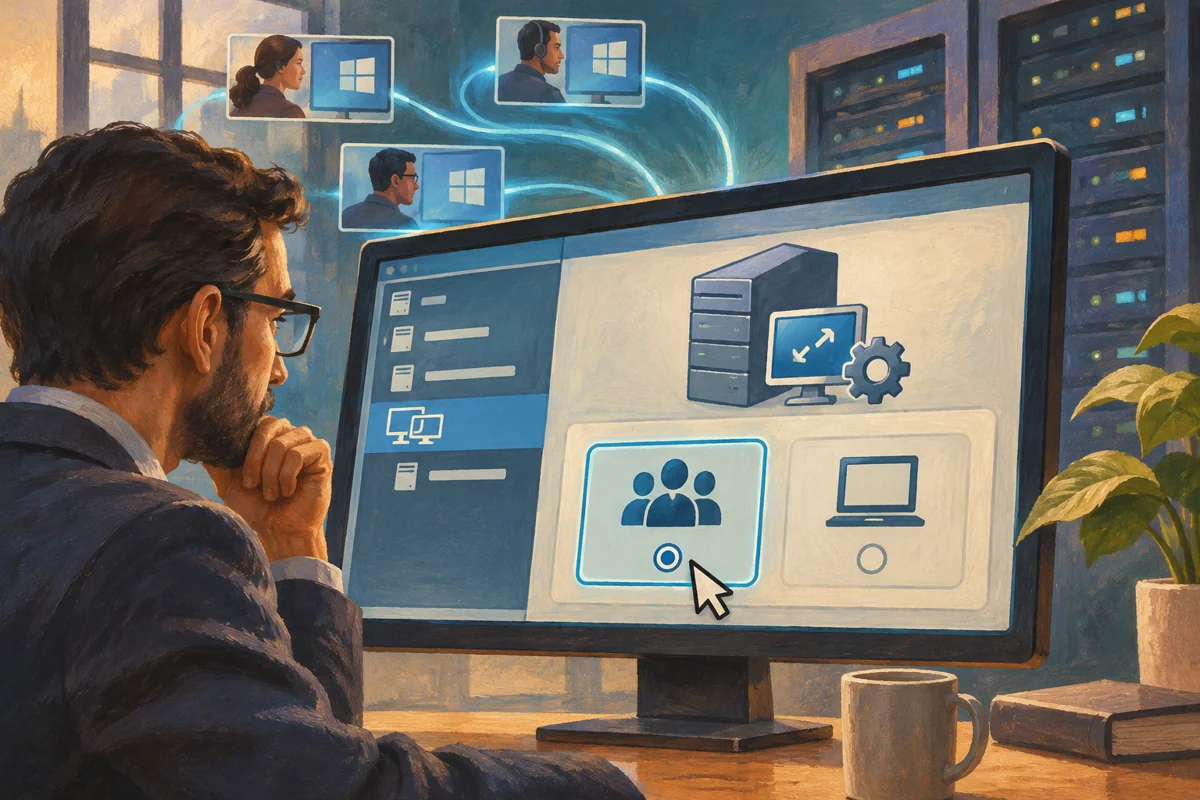
Per User mode associates RDS access rights with named users rather than treating the number of simultaneous sessions as the licence count. Selecting that mode in a console does not create entitlement, and an apparently successful connection does not prove the deployment meets its licensing obligations. Align the agreement, directory design, licence server and Session Hosts before accepting the configuration.
This is an administrator workflow for the agreed managed environment. Netcloud24 prepares licensing and access as part of the service setup; staff receive their assigned accounts and connection profiles. Customers should provide the working pattern and commercial requirements instead of changing host mode themselves.
Check that the deployment supports the chosen mode
Confirm the domain arrangement and actual users. Microsoft's Session Host guidance requires Per Device licensing for workgroup deployments, so Per User is not a workaround for an unjoined or untrusted server design.
Identify the host OS versions and applicable licence versions. A licence for an older Windows Server release does not automatically authorise a newer Session Host. The licensing server also needs to support the installed pack version.
Review the provider or customer licensing programme with the responsible contact. Hosted service agreements can differ from ordinary CAL purchases. Do not turn an online example into an entitlement conclusion or carry a Canadian price into a UK service description.
Understand what is counted and what is authorised
Per User is not simply “one licence for each currently connected person”. An organisation must have the appropriate rights for its licensed users according to the agreement, even when only some are connected at one time.
The technical enforcement and reporting model is not a substitute for compliance administration. A server allowing a session is not a licence audit. Maintain an owned user inventory and reconcile it against the applicable entitlement and reporting requirements.
Account access remains separate too. Removing someone from a collection or disabling an account can withdraw access, while licence reporting follows its own process. Conversely, a recorded licence does not grant permission to a business folder.
Establish one configuration authority
Determine whether the environment uses a Connection Broker deployment, Group Policy-managed standalone hosts or another supported orchestration. Record the governing source before editing a setting.
Conflicting configuration is a common cause of confusing diagnostics. A deployment can display Per User while a host receives another mode from policy. Fix the governing configuration rather than making repeated local changes that refresh will replace.
Capture the existing mode, licence-server list and effective computer policy. Preserve a rollback arrangement and a maintenance window appropriate to the service, including any restart or reconnection requirements identified by the supported workflow.
Verify the licensing service first
Confirm the designated RD Licensing server is installed, activated and contains compatible Per User entitlement. Check its service health and communication from each intended host network. A mode change cannot repair an unavailable server.
Review the directory permissions required for user tracking and reporting. Follow Microsoft's supported licensing-server membership design and diagnostics. Do not respond to a warning by granting a service identity domain-wide administrative rights.
For a replacement licence server, coordinate the supported migration or pack procedure. Keep entitlement records and the old/new server identities clear so a rollback does not become a guess about which server can legally and technically serve the deployment.
Set the broker-managed deployment where appropriate
In a supported broker-managed deployment, inspect the current configuration using the intended broker:
Get-RDLicenseConfiguration -ConnectionBroker 'broker01.corp.example'An illustrative configuration command is:
Set-RDLicenseConfiguration -ConnectionBroker 'broker01.corp.example' `
 -Mode PerUser -LicenseServer 'licensing01.corp.example'
Replace both names with reviewed real values and run through an authorised management context. These commands belong to an RDS deployment with the required management components; they are not a universal recipe for an arbitrary Windows server.
Review the returned state and any required follow-up. Do not add unverified licence servers as redundancy merely because several names can be entered. Every designated service should be supported, reachable and appropriately prepared.
Use the policy path when that is the authority
For hosts governed by GPO, configure the applicable Remote Desktop Session Host Licensing settings for mode and specified servers. Link them to the intended computer scope and confirm effective application.
gpresult /scope computer /h C:\Windows\Temp\RdsLicence-ComputerPolicy.htmlProtect the report and inspect the winning GPOs. A value shown in one management interface is insufficient when a different authority controls the host. Avoid numeric registry edits or obsolete scripts whose effect is not understood.
Verify every important host category, not just the first server selected by the broker. Mixed 2019, 2022 and 2025 estates need compatible settings and entitlement at each host.
Use licensing diagnostics and an ordinary user test
Run RD Licensing Diagnoser on the Session Host and investigate its actual message. Distinguish reachability, activation, version, mode and directory-reporting failures. They require different remedies.
Connect as an authorised ordinary test user through the normal managed route. Confirm collection access, application availability and expected session behaviour. An administrative connection can follow different operational assumptions and should not be the sole acceptance test.
Do not rely on a grace period as evidence of readiness, and never extend it by unsupported reset techniques. Complete the permanent configuration and retain diagnostic results.
Keep reports and account lifecycle aligned
Review usage reporting, user inventory and licence records with their owners. Deal with stale or duplicate identities through the proper account lifecycle rather than deleting licence data experimentally. Track service changes that add users or replace hosts.
When withdrawing a mode change, restore the approved configuration at its governing authority and verify it on the hosts. This does not cancel commercial rights or automatically convert one entitlement type into another. Coordinate those decisions separately.
Microsoft's Session Host licensing guidance describes the supported mode boundary. Related preparation includes licensing-server setup and session lifecycle controls.
Recheck the arrangement after adding a Session Host release, changing domain membership or expanding the user population. Those changes can alter support and entitlement requirements even when the original mode setting remains unchanged and the deployment continues accepting connections.
 How to Install the Remote Desktop Session Host Role
Applies to: Windows Server 2019, 2022 and 2025.RD Session Host runs multi-user desktop…
 How to Install and Activate an RDS Licensing Server
Applies to: Windows Server 2019, 2022 and 2025.RD Licensing stores and issues eligible…
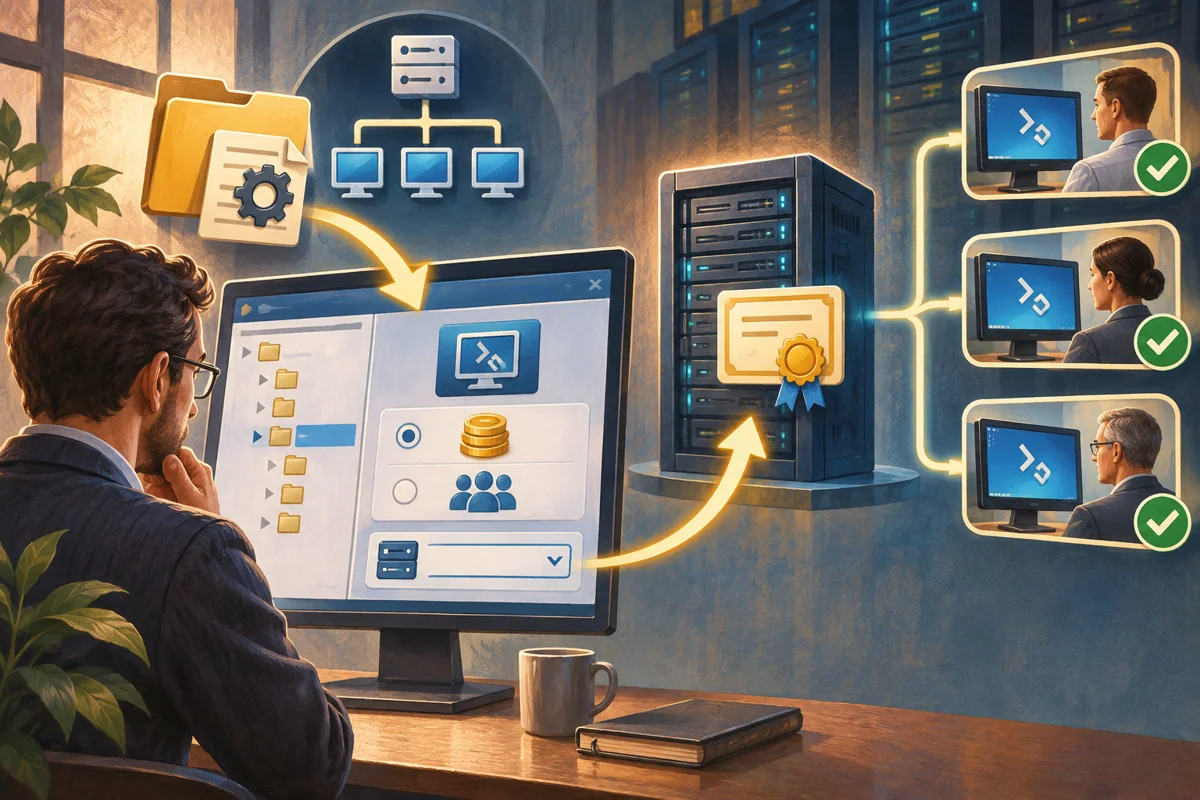 How to Configure RDS Licensing Mode and License Server with Group Policy
Applies to: Windows Server 2019, 2022 and 2025.Session Hosts need…
 How to Create an RDS Session Collection with PowerShell
Applies to: Windows Server 2019, 2022 and 2025.A session collection groups Session…
 How to Publish a Windows Application as RemoteApp
Applies to: Windows Server 2019, 2022 and 2025.RemoteApp presents an approved program…
