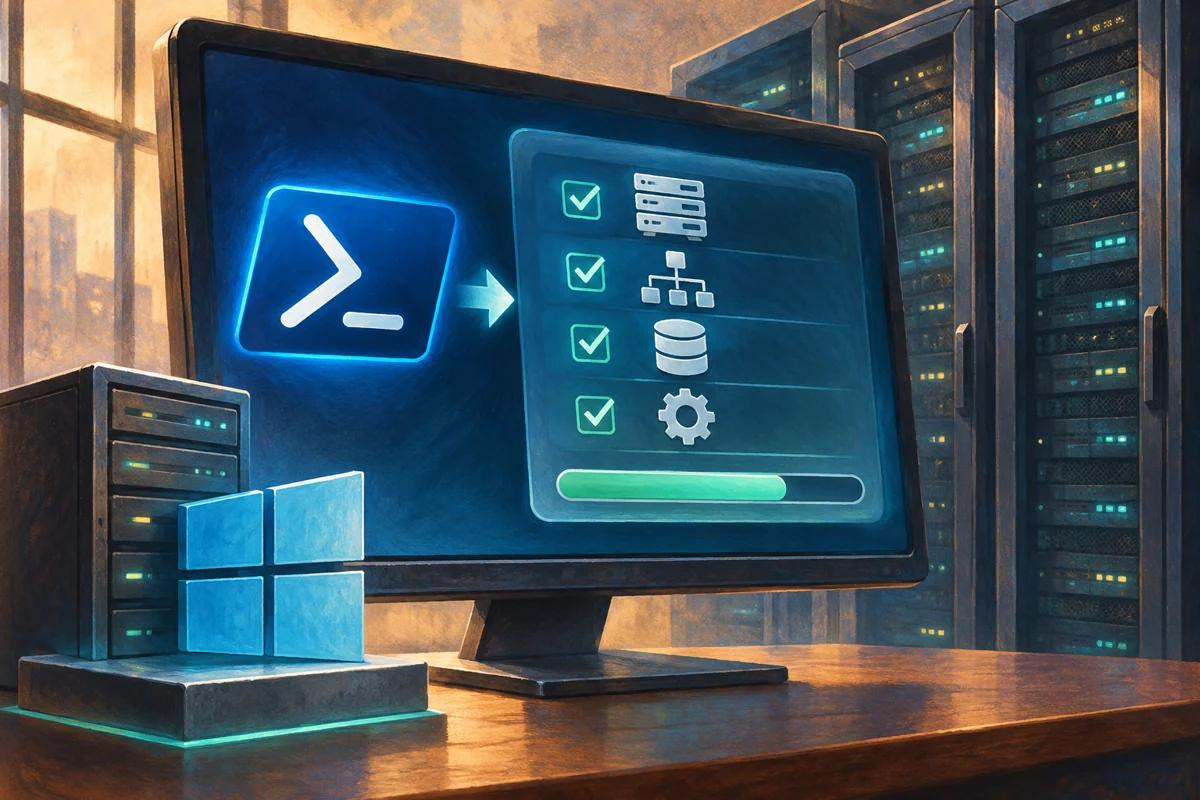
A Windows role installation should have a narrowly defined service outcome. Adding binaries is straightforward; deciding which components belong on the server and proving their configuration is more important. Use PowerShell to make that choice explicit and the returned result reviewable.
This guide covers authorised administration of Windows Server 2019, 2022 and 2025. Netcloud24 prepares required roles within the agreed Managed deployment. Customers should describe their application requirements and request changes through support rather than install extra roles to resolve an unexplained application error.
Specify the service before the feature name
List what the workload must do and the vendor’s documented prerequisites. Identify exact role services rather than selecting every subfeature in a category. A broad installation can create unnecessary components and future maintenance obligations.
Check whether the required service is supported on the server’s release and installation option. A graphical management console may be provided remotely even when its underlying role runs on Core. Adding roles does not turn Core into Desktop Experience.
Review existing applications and why they share the machine. Combining identity, application and access functions can change security and recovery assumptions. The easiest place to install something is not automatically the correct architectural location.
Use the server’s own inventory
Open elevated built-in Windows PowerShell and confirm the target and commands:
hostname
Get-Command Get-WindowsFeature, Install-WindowsFeature, Uninstall-WindowsFeature
Get-WindowsFeature | Select-Object Name, DisplayName, InstallState
The Name field is the identifier accepted by ServerManager cmdlets. The readable display label is not always the command value. Capture the installed baseline before changing anything.
Installed, available and removed-payload states have different meanings. An installed role may still be unconfigured; an unavailable payload may need an approved servicing source. An empty result is not permission to guess a wildcard installation.
Distinguish the component management systems
Windows roles and features use the ServerManager interface. Features on Demand use capability commands, and some optional components use other DISM interfaces. Match the documented tool to the actual prerequisite.
A client Windows workstation does not install production server roles through the same procedure. RSAT supplies management tools on supported clients; it does not convert them into Windows servers.
If PowerShell 7 is the usual shell, verify module compatibility. These examples deliberately use built-in Windows PowerShell so a module-loading issue is not mistaken for a missing operating-system capability.
Plan the maintenance and acceptance boundary
Agree the role, required management tools and restart handling. Have an appropriate verified recovery procedure and console access if connectivity may change. Identify affected users and background tasks before the window.
Define a client-side functional test. File services need a storage and permission check; directory services require a separate promotion and health process; DHCP needs authorisation and scope planning. Installation success does not substitute for any of these.
Do not append automatic restart switches as a default. A component can require a restart even when the command succeeds, and the operator should coordinate that explicitly with application work.
Preview the specific operation
The following illustrates an approved File Server component, not a requirement for every VPS:
Get-WindowsFeature -Name 'FS-FileServer'
Install-WindowsFeature -Name 'FS-FileServer' -IncludeManagementTools -WhatIf
If already installed, decide whether a change is needed. The preview describes the requested operation but cannot validate business approval, storage design or application support.
IncludeManagementTools requests associated tools where supported. It does not promise that every graphical console runs locally on Core. IncludeAllSubFeature deliberately broadens the selection and should not replace a considered prerequisite list.
Install and inspect the result
$result = Install-WindowsFeature -Name 'FS-FileServer' -IncludeManagementTools
$result | Format-List Success, RestartNeeded, ExitCode, FeatureResult
Review Success and ExitCode alongside the affected components. Preserve warnings and errors. If a restart is needed, save work and use the agreed controlled process before checking the final state.
Do not repeatedly rerun the command while servicing is pending. A second attempt can obscure whether the original operation succeeded, failed or is awaiting completion.
Resolve payload access through an approved source
For a source error, record the Windows release, edition, language and exact component. Use matching authorised media or the organisation’s approved servicing location. Another server’s ISO is not automatically a suitable source.
A network feature source can require read access for the destination computer account as well as the operator. An administrator browsing a share successfully does not prove the servicing process can access it. Avoid granting broad write permissions to solve a read-path issue.
Update or feature-source policy may govern whether Windows Update is contacted. Correct that through its owner rather than bypassing central approvals with local registry edits.
Configure and prove the actual workload
Get-WindowsFeature -Name 'FS-FileServer'
Get-WindowsFeature | Where-Object Installed |
    Select-Object Name, DisplayName
Compare the final installed list with the baseline, including dependencies added by the operation. Then complete the supported role configuration.
For the illustrative file service, prepare the approved volumes, shares, NTFS permissions, share permissions and backup protection. Test from a representative ordinary account. A broadly writable temporary share is not an acceptable production default.
Installing AD DS does not create a forest, and installing an RDS component does not complete licensing or a session deployment. Follow the appropriate service-specific procedure rather than assuming the installation cmdlet performs every next step.
For example, a file component can install correctly while the intended ordinary user still cannot save data because the share and NTFS permissions disagree. Diagnose that configuration boundary rather than reinstalling the role or adding administrator membership. Preserve a functional test showing the permitted write location and another check showing unrelated information remains restricted.
Reverse through a dependency review
Before removal, identify data and services that now depend on the component. Preview the exact newly installed feature with Uninstall-WindowsFeature and WhatIf. Do not remove a role as a substitute for decommissioning its state, such as demoting a domain controller.
Protect required information, review dependencies and restart requirements, then test affected clients after the approved removal. Payload-removal options also affect future reinstall sources and should not be added casually.
Keep the component selection, outcome and functional acceptance with the change record. See deployment acceptance and Microsoft’s installation reference and role-management guidance.
 Deploying Windows Server 2025 with a graphical desktop
Build Windows Server 2025 Desktop Experience through a controlled clean installation. Protect disks, select the correct image and licensing…
 Building a manageable Windows Server 2022 Core instance
Plan and install a supportable Windows Server 2022 Core instance. Verify workload fit, image and storage, then establish SConfig, remote…
 A supported clean build of Windows Server 2019 Desktop Experience
Create a justified Windows Server 2019 graphical deployment with protected disks, correct media and verified servicing. Accept the…
 Selecting a Windows Server interface for the workload and support team
Choose the Windows Server interface around application support, maintenance tasks and recovery skills. Compare Core and Desktop Experience,…
 Establishing a Server Core baseline with the SConfig menu
Establish a coherent Server Core baseline using SConfig. Prepare identity, networking, membership, maintenance and access decisions, then…
