
NetCloud24 H1 gives you 5 GB of free web hosting storage, your own domain, DirectAdmin, SSH access and Node.js. There are no compulsory banners or advertisements on your website. You can start with a project page, portfolio or blog, then manage the files and services from your hosting panel.
Why the free plan has a €1 annual verification payment
NetCloud24 introduced this small payment after receiving large volumes of spam and automated account registrations. The annual verification step helps discourage bots and abuse. The hosting service itself remains free.
Create your account and choose an address
Open the free hosting offer, select H1 and follow the registration steps. Enter the website address you want, check availability and review the spelling before completing your order. You can begin with an available hosted subdomain or connect a domain you control. Domain registration is separate from connecting an existing domain to hosting.
Once the account is active, open the DirectAdmin address supplied with your service and sign in with your assigned username and password. The client area handles your service and order information; DirectAdmin contains the website management tools.
Find your way around DirectAdmin
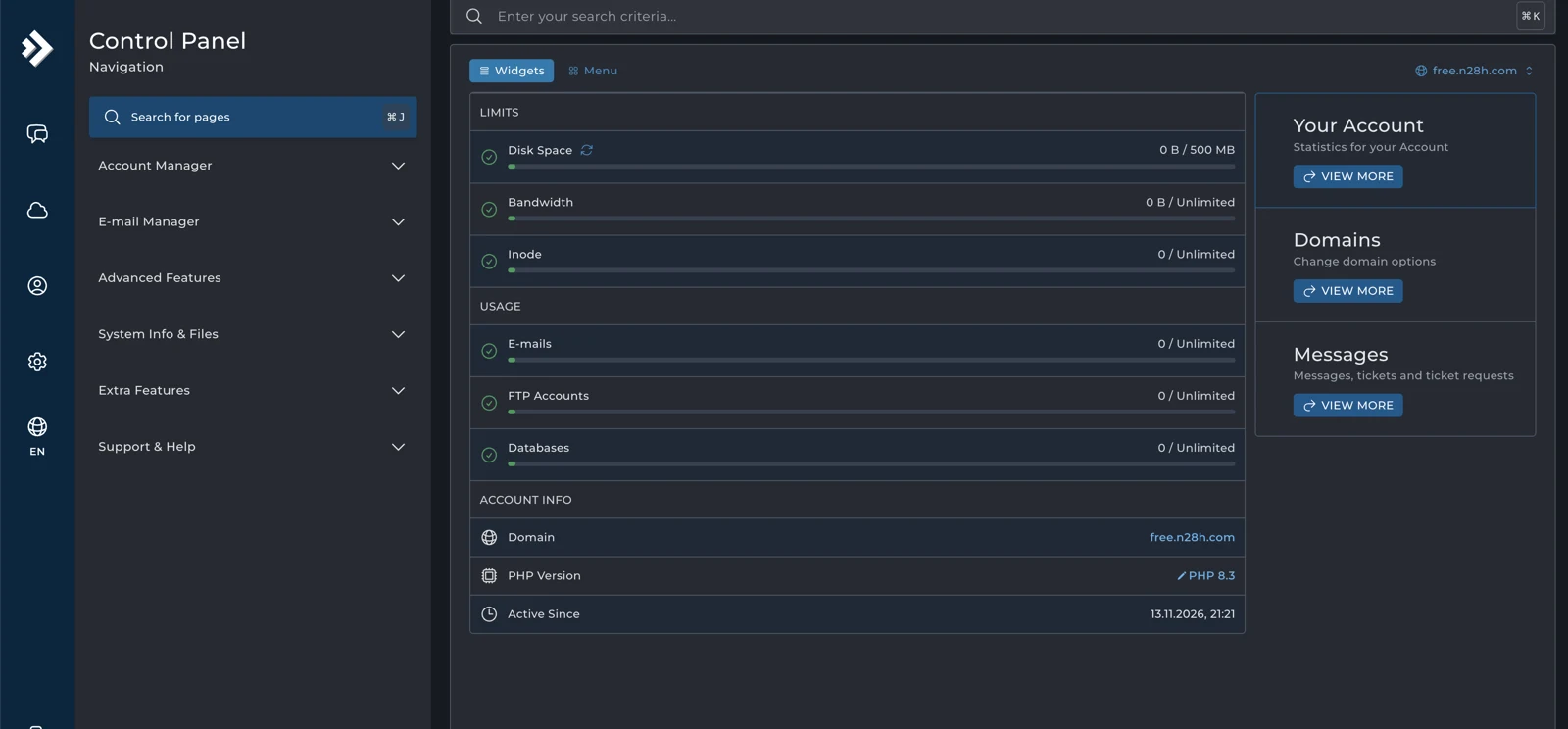
Use the search box when you know which setting you need. The sidebar groups tools under Account Manager, E-mail Manager, Advanced Features, System Info and Files, Extra Features, and Support and Help. Select the right domain before changing a site's settings.
The dashboard widgets show storage, bandwidth, inodes, mailboxes, FTP accounts and databases. User statistics adds account history, disk usage and bandwidth breakdowns. System Information and Site summary and logs help when you need to inspect the environment or investigate a website problem.
Upload files and publish your website
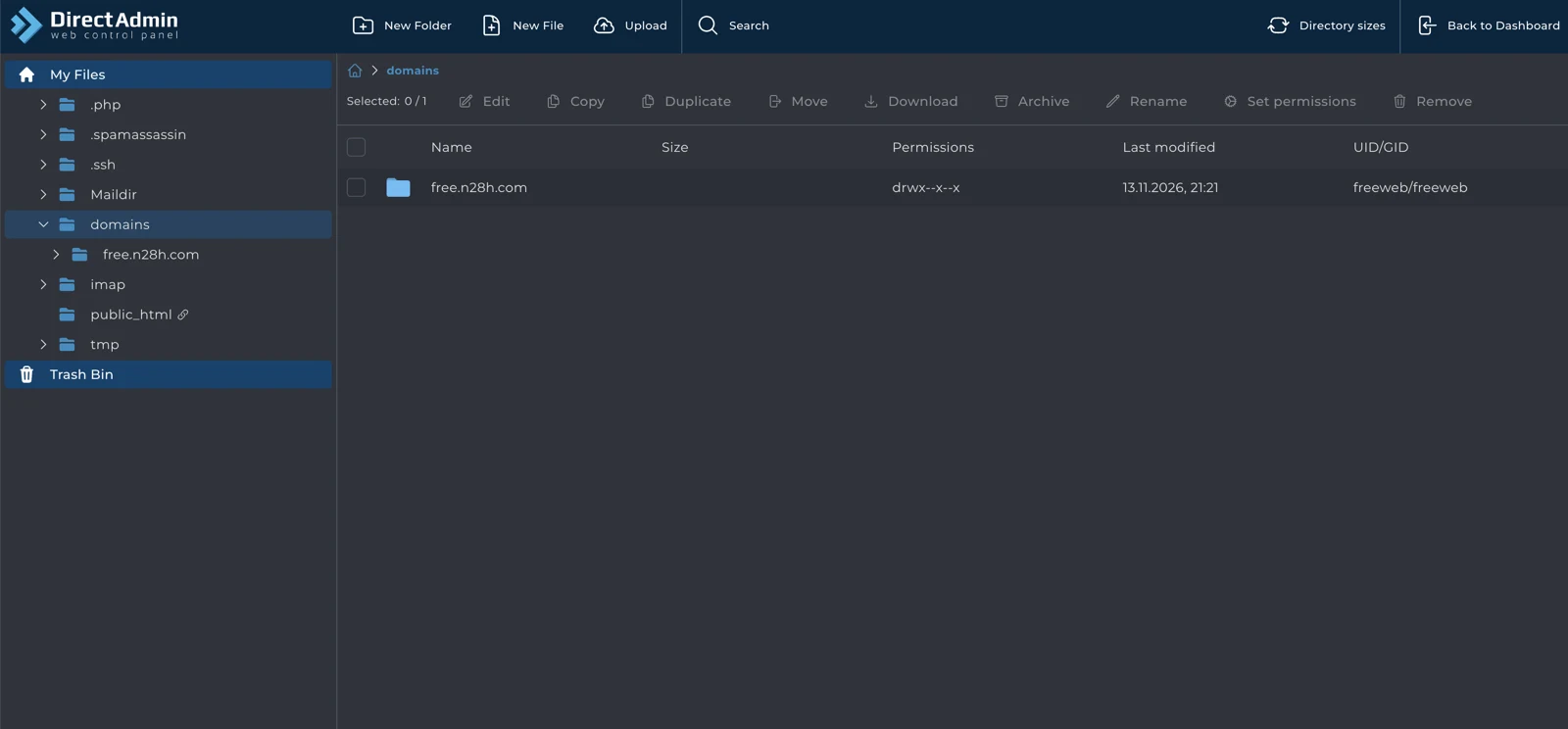
Open File Manager under System Info and Files. Expand the domains folder, choose the correct domain and open its website directory. Check the location before uploading: mail and configuration folders have different purposes.
- New Folder, New File and Upload: organize assets, create a document or transfer website files from your computer.
- Edit, Copy, Duplicate and Move: update content or reorganize it without re-uploading everything.
- Download and Archive: keep a copy before replacing working content.
- Rename, Set permissions and Remove: maintain the files carefully, with only the access your application needs.
Search, Directory sizes and the Trash Bin make routine maintenance easier. FTP Management provides a separate transfer option; create individual accounts and limit each one to the directory it needs.
Connect domains, subdomains and DNS
In Account Manager, Domains lists your websites and their resource use. Add New prepares another domain on the hosting side. Set the corresponding DNS with the domain provider so visitors reach the correct server. The domain list also includes renaming, default-domain and suspension controls.
Subdomain Management is useful for separate areas such as a blog or development site. Check the document root before uploading its content. Domain Pointers connects an additional name to an existing website, while Site Redirects sends an old URL path to a replacement address.
In DNS Management, A records point names to an IP address, NS records identify name servers, MX records direct incoming email, and TXT records can contain email authentication information. TTL controls caching time. Use the connection details supplied for your account and test the public address after making changes.
Set up databases and keep backups
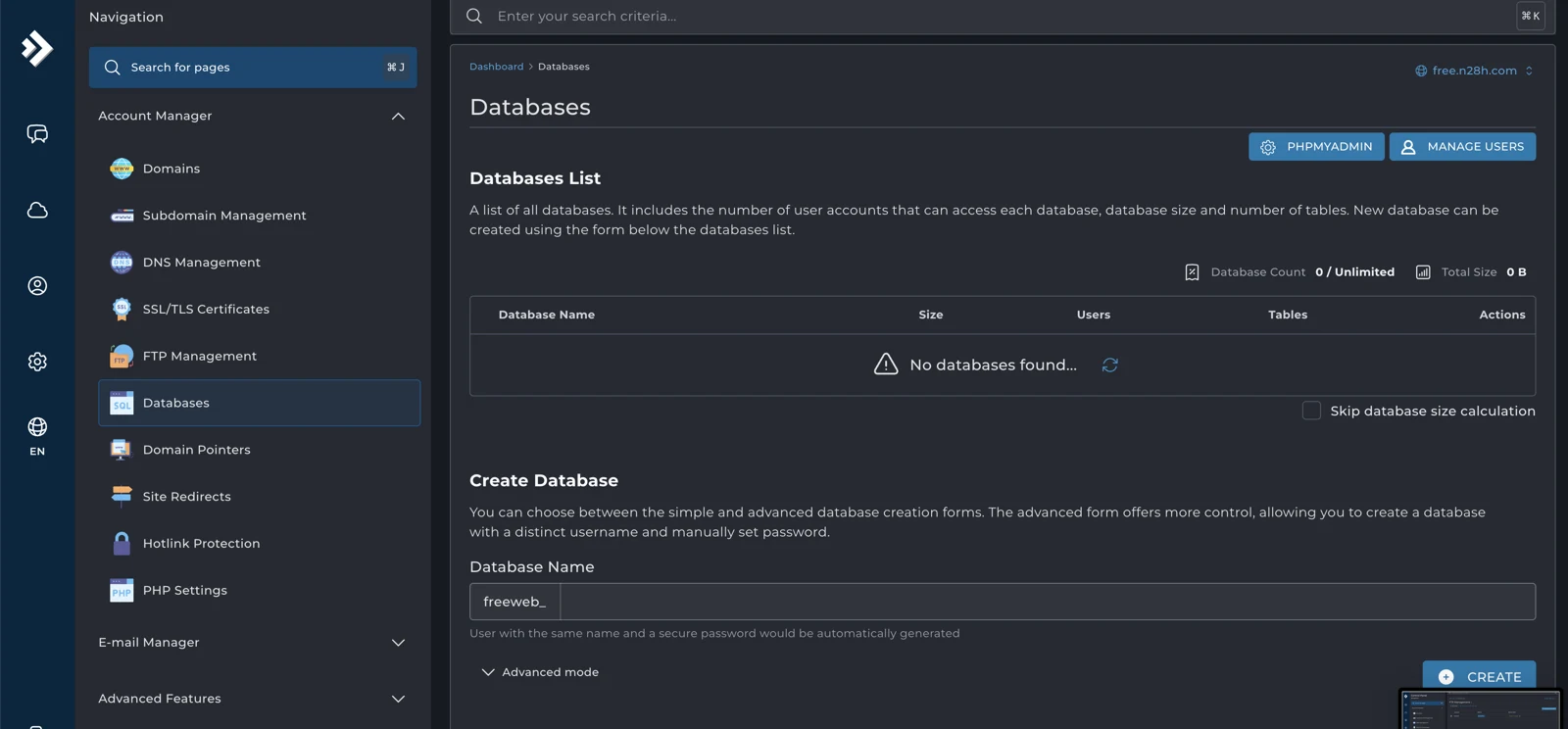
Open Databases, enter a name and keep the account prefix in mind. The simple form generates a matching user and secure password; Advanced mode offers more control. Save the connection details securely and use them during your application's setup. Manage Users handles database access.
phpMyAdmin provides SQL, import, export and database inspection tools. Select the application database before working with its tables. The information schema contains system metadata and is separate from your website content. Export a copy before making substantial changes or importing new data.
Backup and Restore lets you select all or individual domains and review the data included, such as domain files, subdomain lists and email data. Keep an additional copy outside the hosting account. Before restoring, check which files and data will be replaced.
Manage email on your domain
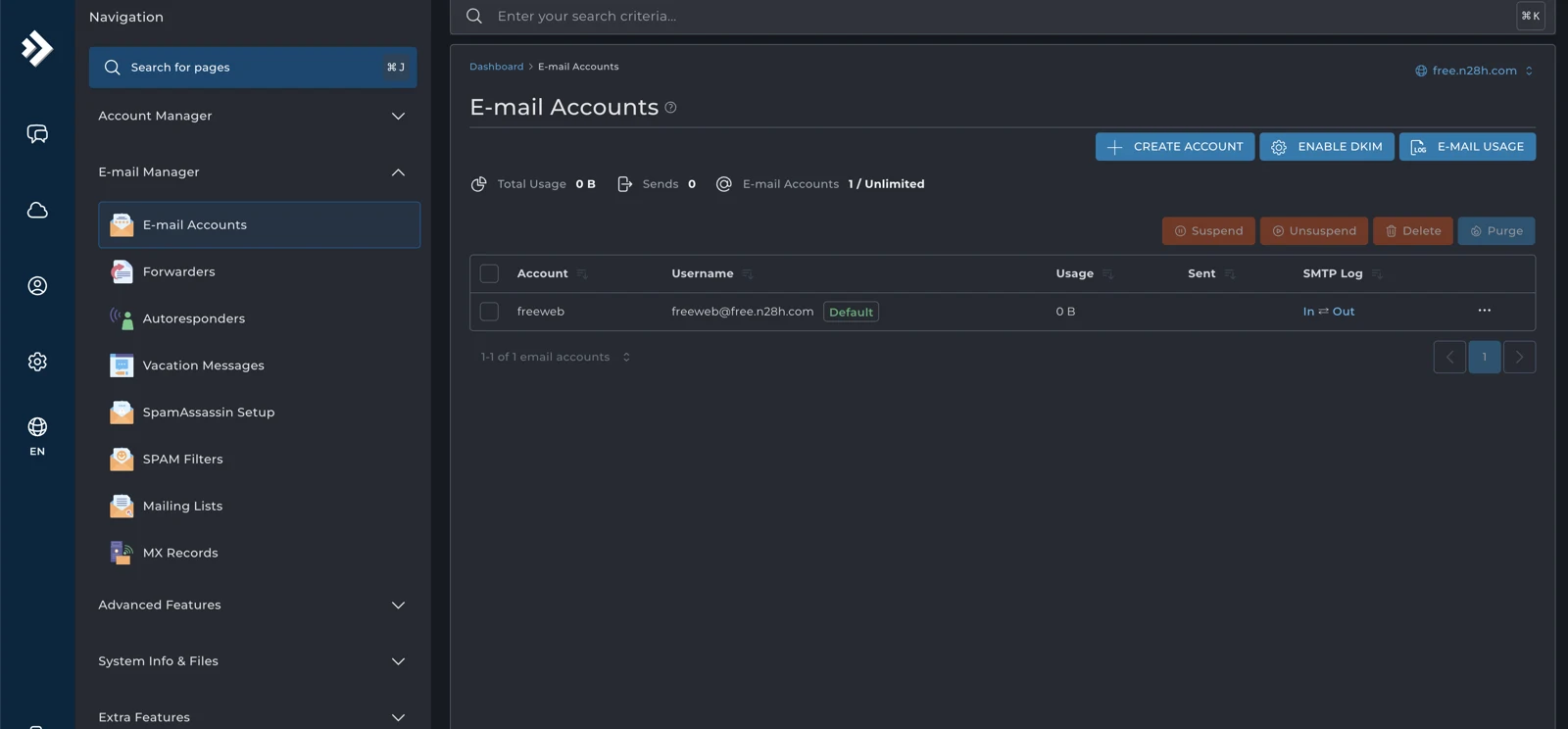
E-mail Accounts shows mailbox usernames, storage, sending activity and SMTP logs. Create Account adds a mailbox; Enable DKIM provides email signing. Check usage and logs when investigating delivery, and review the selected account before using Delete or Purge.
- Forwarders: route messages from one address to another.
- Autoresponders: send a short automatic acknowledgement.
- Vacation Messages: schedule an out-of-office reply for a defined period.
- SpamAssassin and SPAM Filters: classify unwanted mail and apply targeted filtering rules. A spam folder lets you review matches before deleting them.
- Mailing Lists: organize messages for subscribed recipients, with digest and archive controls.
- MX Records: choose where incoming mail is delivered and whether this server handles it.
- Catch-All E-mail: decide how to treat messages sent to nonexistent addresses. The panel recommends leaving catch-all disabled.
Roundcube provides browser-based access to your mailbox. Sign in with the mailbox credentials rather than assuming the hosting panel password is also the email password.
SSH Access and Node.js
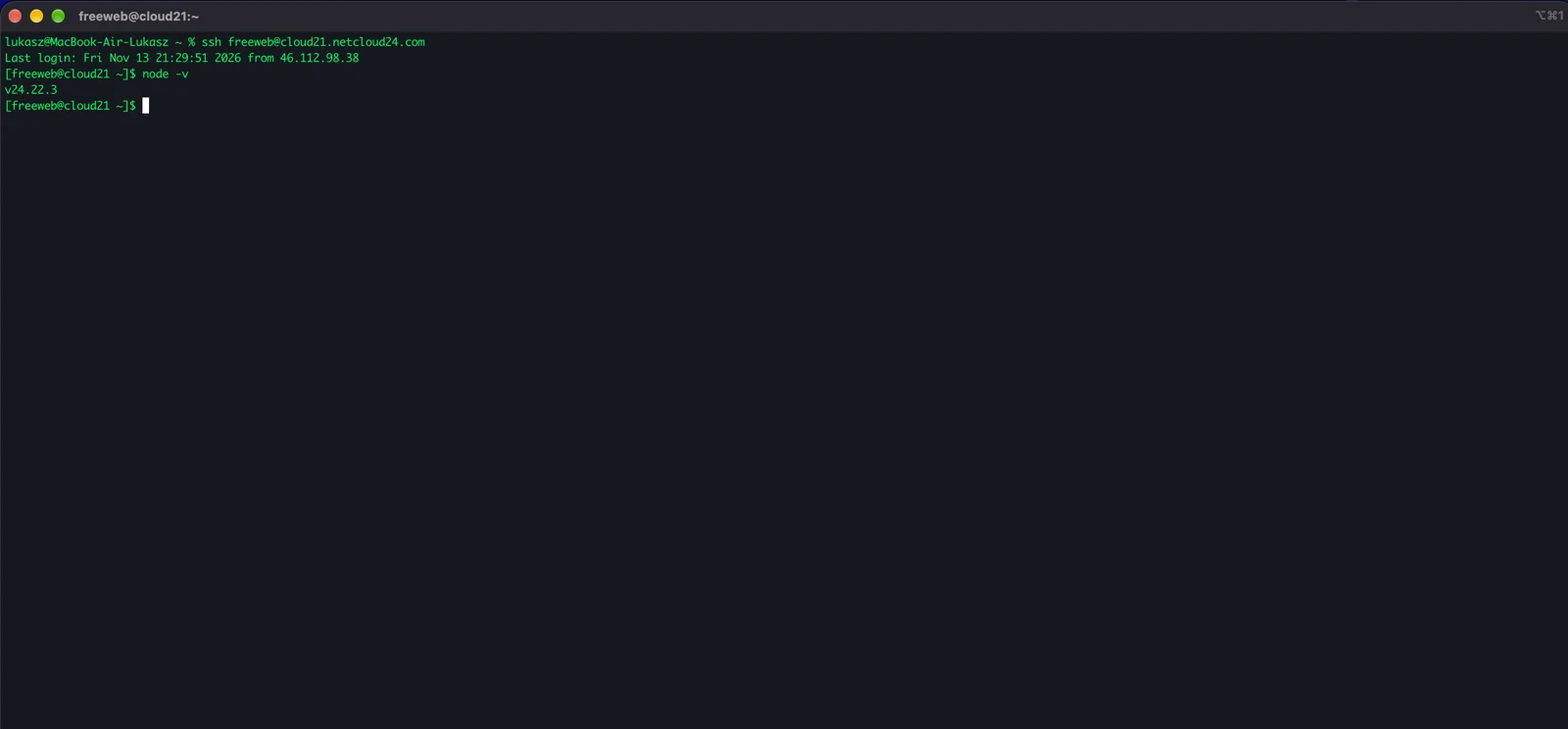
Connect from your terminal using the username and server address supplied with your account. Run node -v to check the installed Node.js runtime; the terminal shown here returns version 24.22.3. Check compatibility with your project before preparing JavaScript tools or scripts.
SSH Keys separates public keys from authorized keys. You can create or paste a key and authorize it. Keep the private half securely on your computer, check fingerprints to identify your keys, and remove access that is no longer needed.
Protect configuration files that contain credentials. For a continuously running application, confirm the deployment method supported by your hosting plan. For a static project, upload the published output to the correct website directory and test the resulting address. Cron Jobs can run supported account commands on a schedule, with output sent to email if needed.
PHP, HTTPS and account security
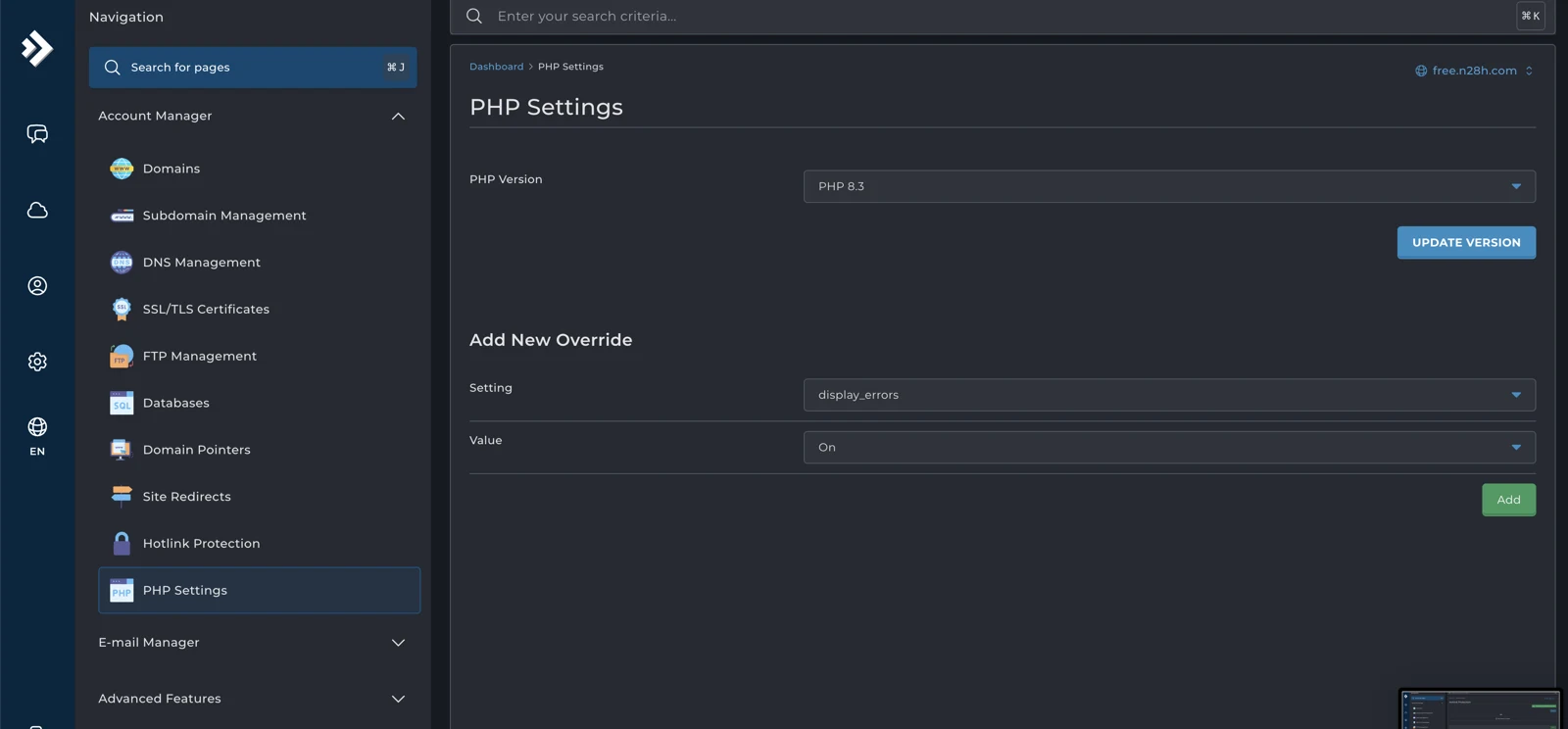
PHP Settings lets you select a compatible runtime and add setting overrides. Check application requirements before using Update Version. Detailed error output can help during troubleshooting, but should stay off public pages when the website is live.
SSL and TLS Certificates tracks validity, expiry and renewal. Check provisioning status, ACME settings and provisioning history, then test HTTPS after the domain resolves correctly and the certificate is issued.
Two-Step Authentication adds another sign-in factor; complete setup with an authenticator and store recovery codes securely. Login Keys provides additional panel credentials with restrictions on functions, networks and expiry. These are separate from SSH keys.
Protected Directories adds a password prompt to a selected website folder. Hotlink Protection controls other websites embedding selected file types. Review allowed URLs and blank-referrer handling, then test legitimate access after enabling protection.
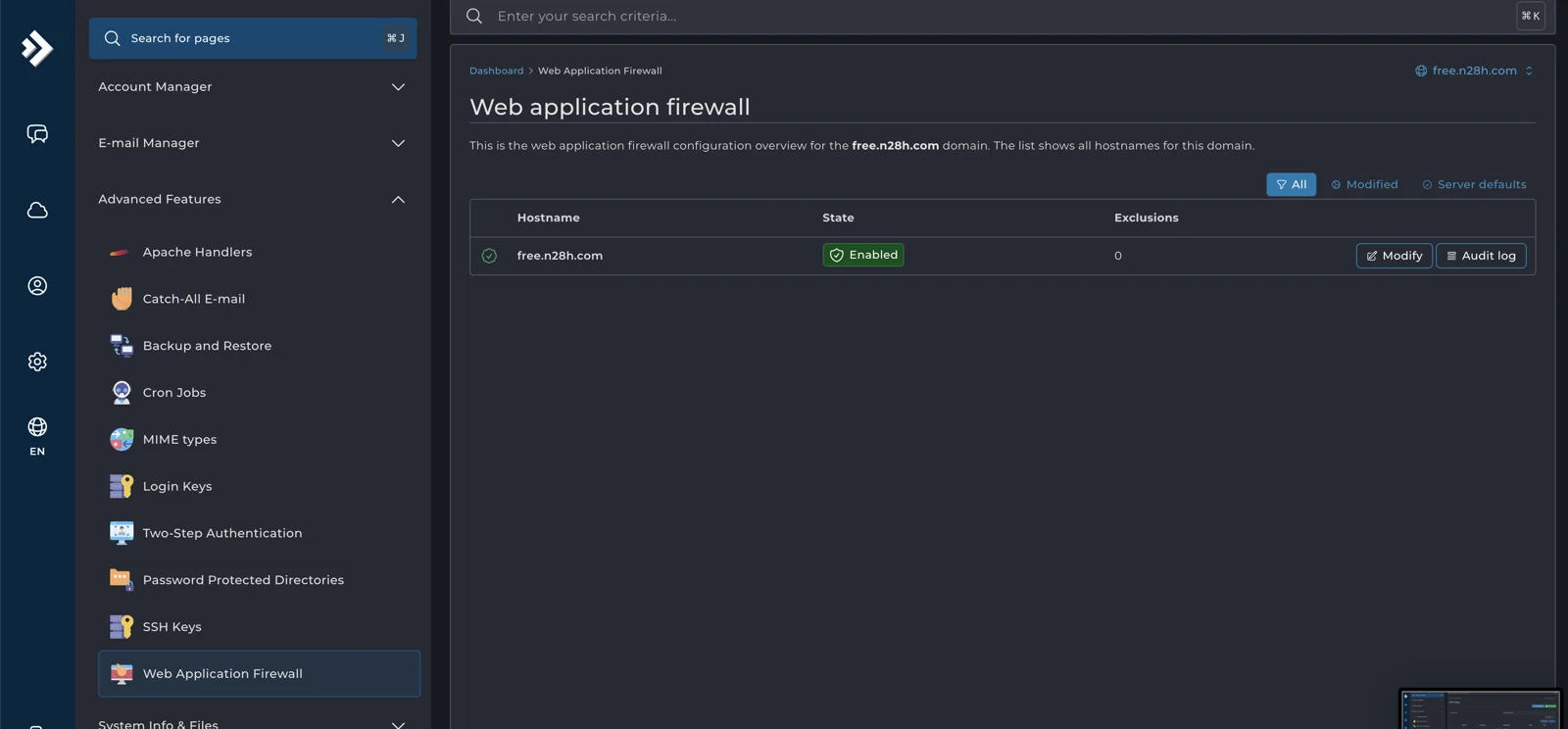
The Web Application Firewall offers configuration and audit logs for your hostname. Review a blocked event before changing protection or adding an exclusion. Apache Handlers and MIME types provide extension mappings for specific application requirements; inspect existing system mappings before adding your own.
Put your website online
Start with the pages you need, optimize the images, connect your address and test the site in a browser. Keep a working copy before updates, review storage as the project grows, and make backups part of routine maintenance.
 Remote Desktop access to a hosted Windows server: a user’s guide
Connect from Windows or macOS to the environment prepared for your team. Understand account details, VPN and gateway requirements,…
 From order to handover: what a Managed Windows VPS includes
Understand how Netcloud24 prepares a Managed Windows environment, what deployment information is needed and how licensing, application…
 Which Windows Server release should host your business software?
Choose Windows Server around the complete business application, support horizon and tested workflow. Understand the release options,…
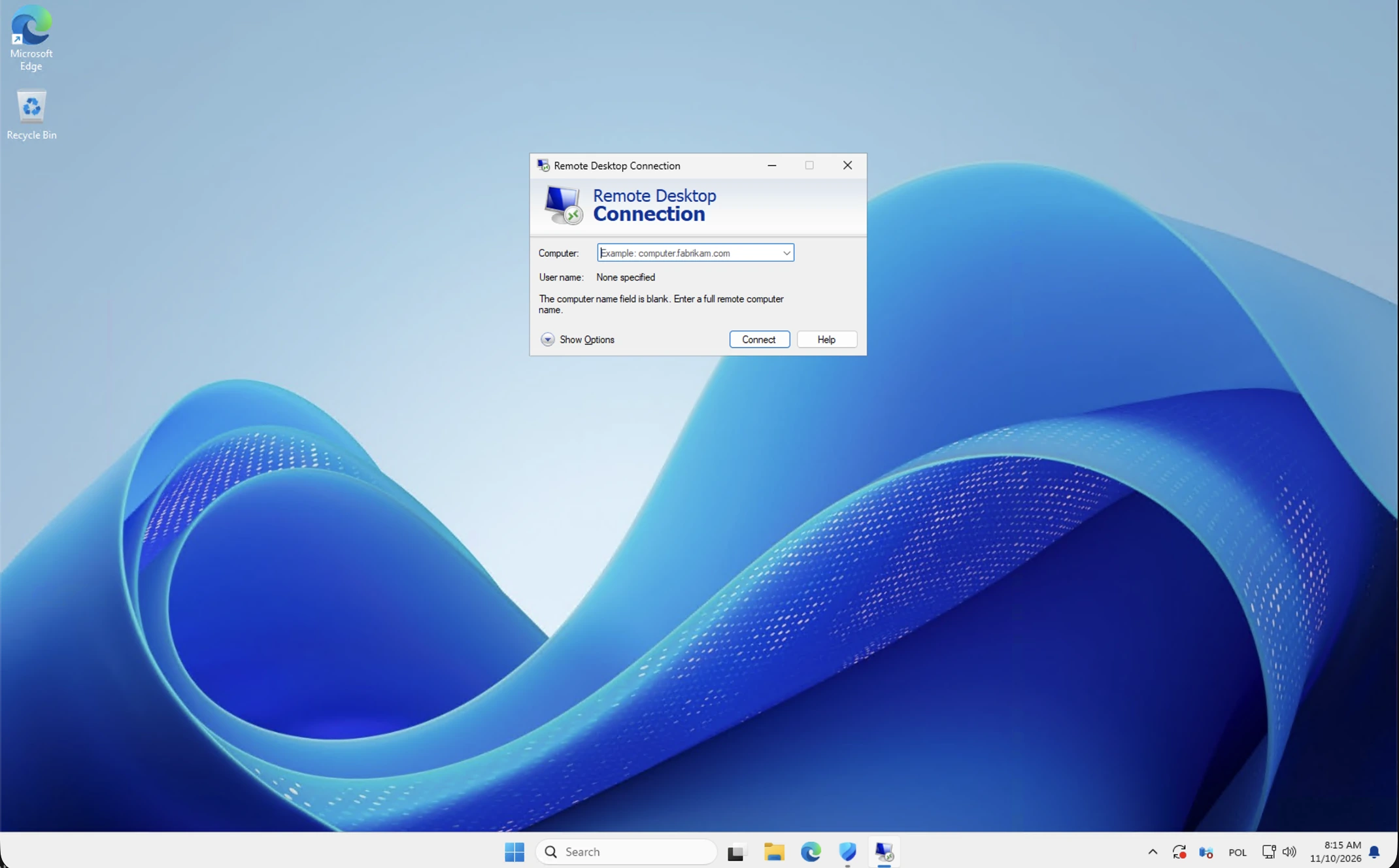 Your first Windows VPS sign-in: a visual Remote Desktop walkthrough
Open your prepared Windows workspace using the supplied Remote Desktop destination and individual account. Follow the illustrated prompts,…
