A Windows server platform needs to remain manageable when an application is busy, a disk fails or a network setting goes wrong. Choosing a hypervisor is one part of that decision. Resource planning, a separate recovery route and a tested backup design determine how useful the platform will be in daily operation.
This article takes a planning and operations view of Windows Server virtualisation with Proxmox. It uses a remote Dell server deployment to explain the decisions worth making before you put business applications into production.
Looking for a hosted option? Review Windows VPS hosting from NetCloud24.co.uk or talk to our team about managed setup. Start with the application and recovery requirements rather than choosing a plan by CPU count alone.
The accompanying ten-minute video demonstrates the installation workflow. The points below focus on how to turn those installation choices into an environment you can support and recover.
Start with the workload and the cost of downtime
Write down what will run on the server, who will use it and which services depend on it. An interactive business application, a database and a background processing task can place very different demands on the same hardware. Note expected concurrent users, data growth, busy periods and any scheduled jobs.
Agree two recovery targets. The recovery point objective, or RPO, describes how much recent data you can afford to lose. The recovery time objective, or RTO, describes how quickly the service needs to return. A daily backup may be unsuitable for a workload that cannot lose a day’s changes, even if every backup job succeeds.
- Record normal and peak usage instead of relying only on the application’s minimum specification.
- Include the operating system, application data, temporary files and growth in the storage estimate.
- Identify who will receive failure alerts and who can authorise a restore.
- Plan a maintenance window and a way to contact administrators if the normal remote-access service is unavailable.
Keep physical control separate from guest access
There are three useful levels of access: the physical server, the Proxmox host and the Windows guest. Treat them as separate management paths with separate credentials. A working Windows desktop session does not help if the hypervisor will not boot; a healthy hypervisor cannot replace physical power and console controls when the host itself has stopped.
On compatible Dell systems, iDRAC supplies the physical management route. Remote console and Virtual Media can support installation and recovery without an administrator travelling to the rack. Keep that interface on a restricted management network or behind a suitable VPN, and verify that its required features are licensed and available before a maintenance window.
Test the fallback route while the system is healthy. Confirm you can reach the console, identify the correct server and attach installation or recovery media. A recovery procedure is much more dependable when the access path has already been exercised.
Use virtual machines to separate responsibilities
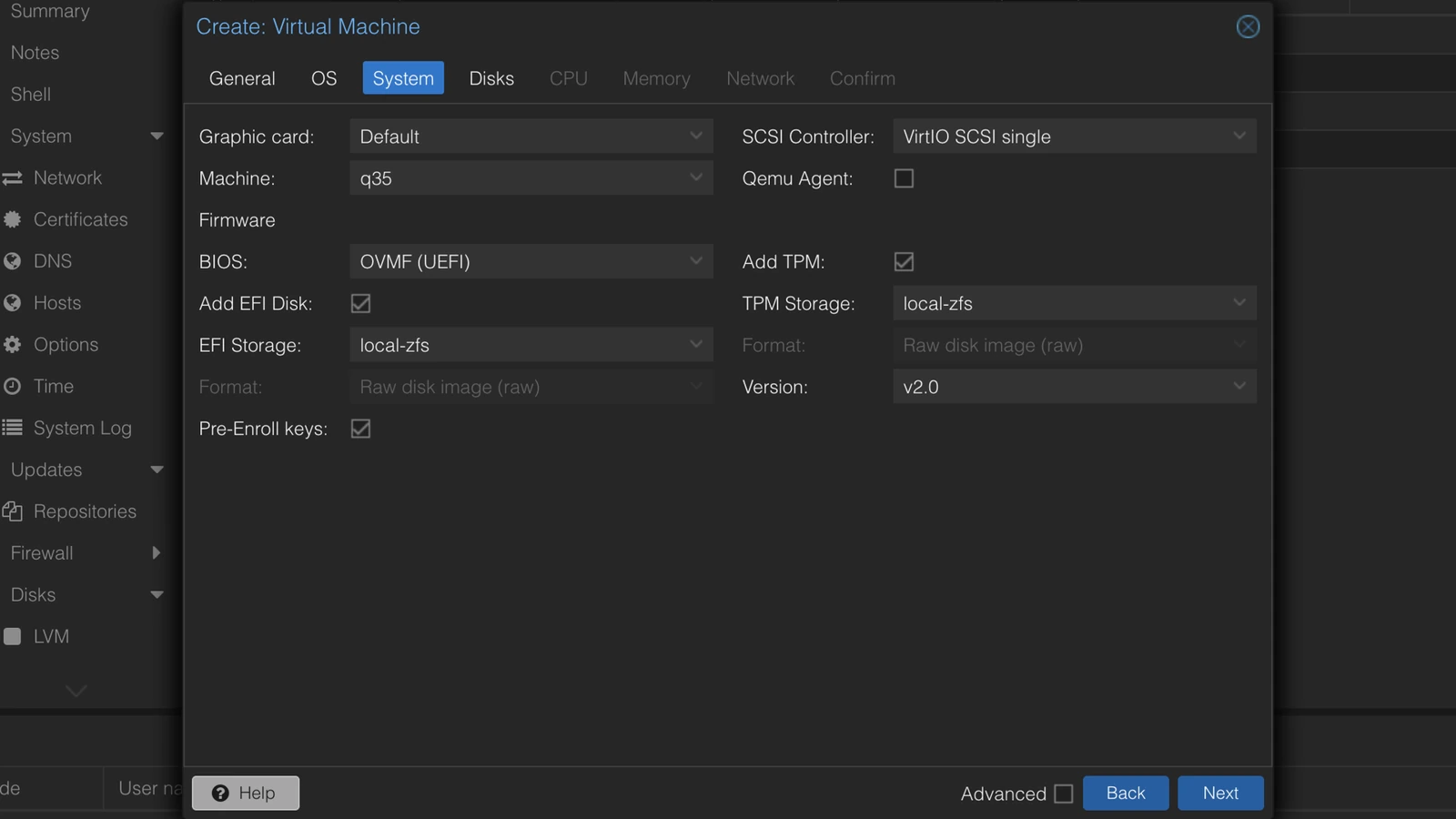
Virtualisation makes it possible to give different workloads their own operating systems and administrative boundaries. For example, separating a business application from an unrelated test service makes upgrades and restores easier to organise. Each VM can have its own resource allocation and backup policy.
Those boundaries do not eliminate shared dependencies. Several VMs on one physical machine still rely on that machine’s memory, processors, storage and network. Installing a hypervisor on a single host is not a high-availability design. If host downtime is unacceptable, plan the additional hosts, networking, storage and operational arrangements needed to support that requirement.
Budget CPU, memory and storage together
Adding more virtual CPU cores is not a universal performance fix. Look at utilisation during the application’s busy periods and leave capacity for the host and its other guests. An eight-core VM in a demonstration is an example allocation, not a recommendation for every application.
Memory pressure can also make a responsive system feel slow. Include the application’s working set and the operating system in the budget, and monitor how the guest behaves during real use. Avoid assuming that allocating every available gigabyte to one VM improves the platform as a whole.
For storage, distinguish the size of a virtual disk from the capacity and performance available underneath it. Track free space on the host as well as inside Windows. Account for snapshots, backup-related activity and future growth, especially when capacity is allocated on demand.
A ZFS mirror helps the host continue after one drive fails, but it is still one storage system in one location. It does not protect against accidental deletion, a compromised administrator or the loss of the site. Storage resilience and recoverable backup copies serve different purposes.
Understand VirtIO before investigating a slow guest
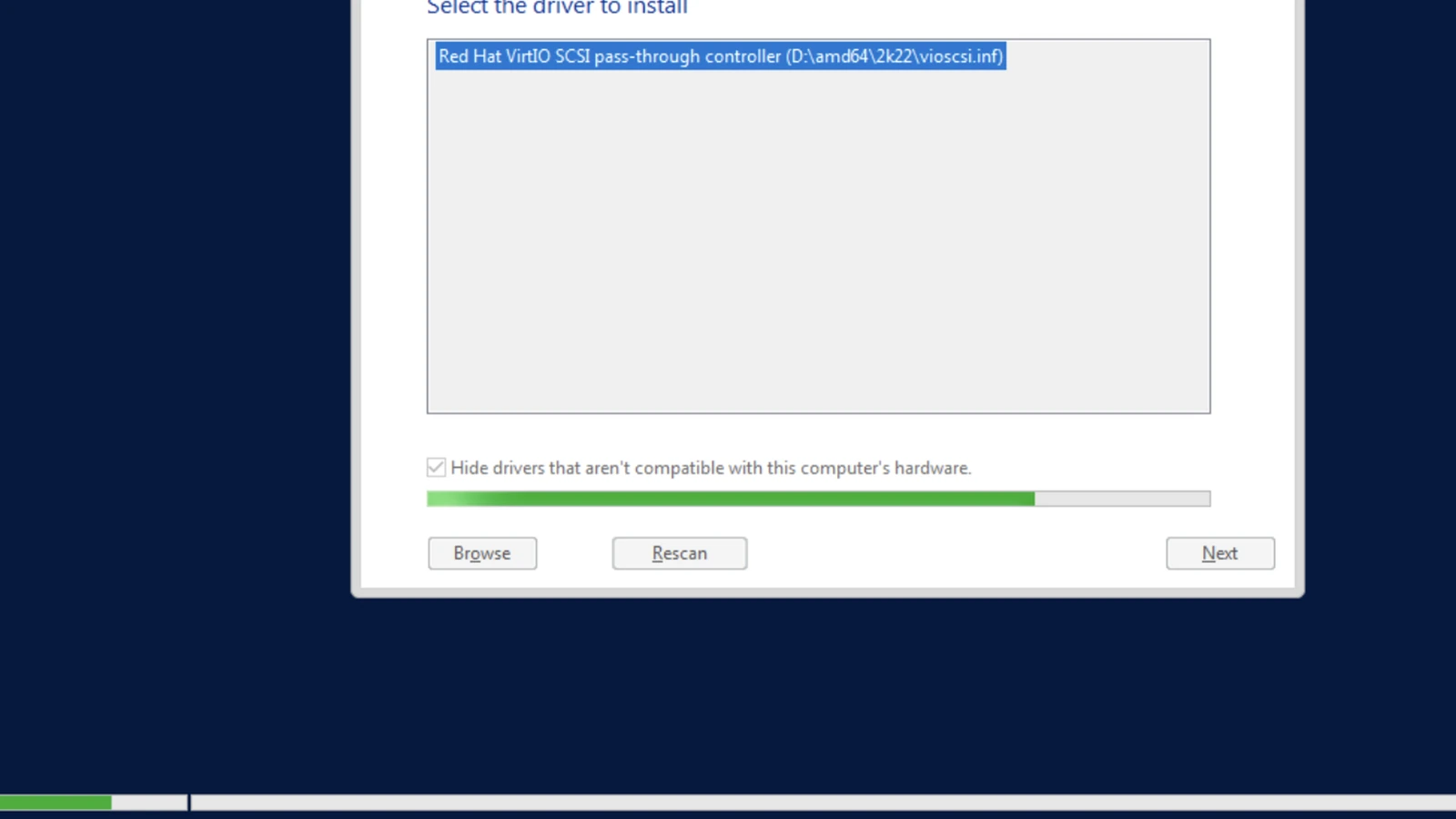
A virtual machine can expose emulated versions of older physical devices or devices designed for virtualised operation. VirtIO drivers let Windows use the latter efficiently. This can reduce device-emulation overhead for storage and networking, provided the guest has the correct driver for the selected device.
The driver ISO is a delivery medium. Attaching it makes the files available; it does not automatically configure every device. During Windows setup, a missing storage-controller driver can leave the installer with an empty disk list. After installation, review Device Manager and the installed driver versions rather than assuming a completed desktop means all integration work is finished.
If a guest remains slow, measure the workload before changing multiple settings. Compare guest CPU and memory use, disk latency and network traffic with the corresponding host conditions. A VirtIO driver cannot compensate for an overloaded physical storage pool, insufficient memory or an application bottleneck.
Keep the guest agent separate in your reasoning. Device drivers support the virtual hardware; the QEMU guest agent supports communication with Proxmox for management functions. Enable the host-side option and check the Windows service when testing that integration.
Design guest networking around the access you need
A private bridge is useful for keeping guest traffic in an internal segment and deciding which services should be reachable from elsewhere. It behaves like a virtual switch. Routing, firewall policy and any required address translation remain separate design decisions.
Reservations can make guest addresses predictable, but DHCP is not an internet gateway. Check the supplied address, mask, gateway and DNS from inside the guest. If Windows depends on a domain or internal services, choose DNS according to those dependencies rather than copying public resolver settings without review.
Limit administrative entry points. Use a controlled route for Remote Desktop and keep the Proxmox console as a fallback when Windows networking fails. Check permissions and network reachability from the administrator’s actual workstation. If you are selecting a DHCP service for a new deployment, consider a maintained implementation such as Kea; ISC DHCP has reached end of life.
Put recovery copies outside the production failure boundary
The backup destination should be another server in another data centre. A second volume in the production machine does not address a whole-host failure, and a nearby server in the same facility can still share a site incident. Separate the systems physically and administratively, then decide retention and transfer schedules around the agreed recovery targets.
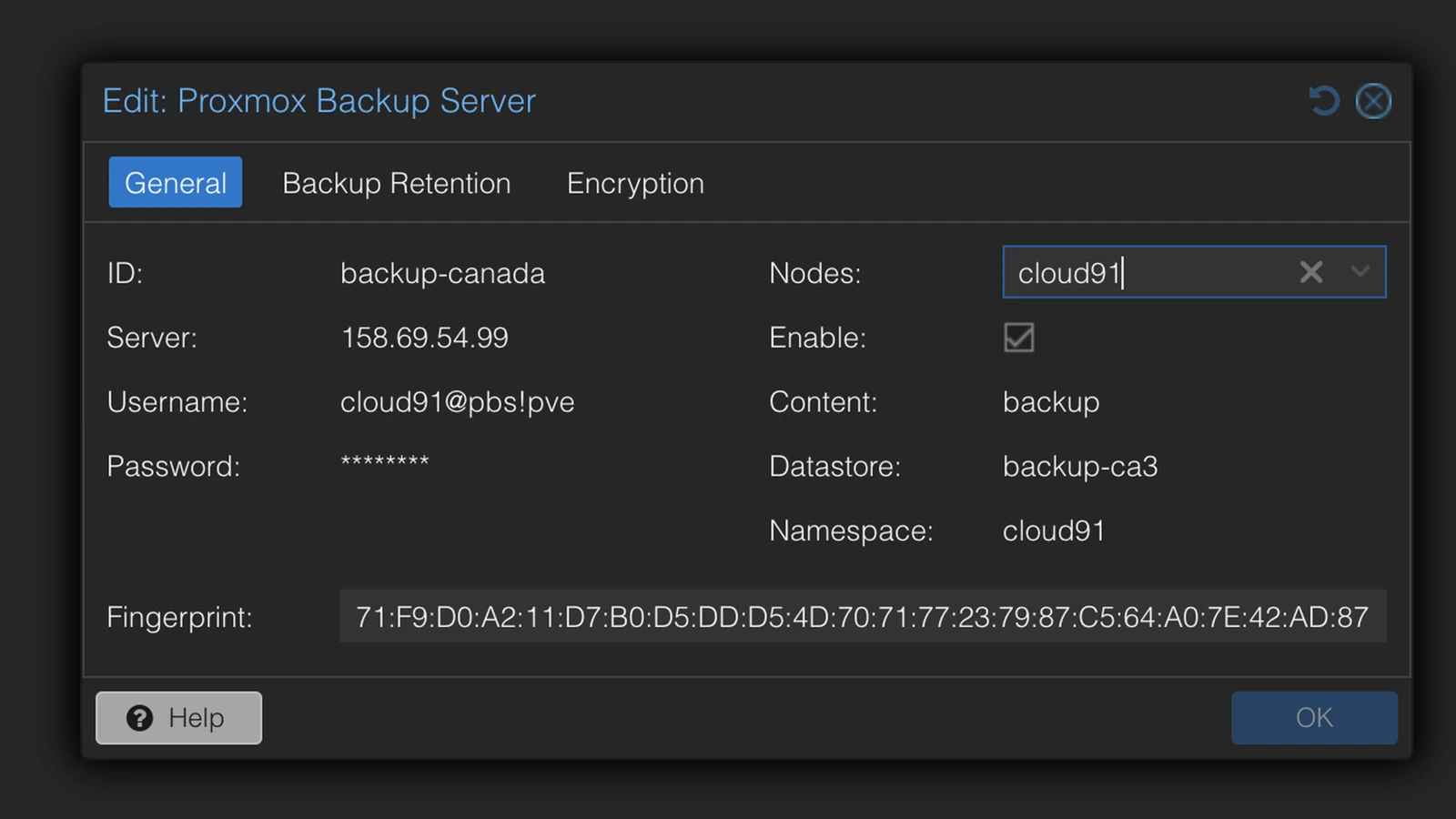
Use a distinct Proxmox Backup Server token for each production host. Scope the account and token to the required namespace with the DatastoreBackup role. That role supports backups and restores of owned data; it does not provide the pruning permissions included in more powerful roles.
Keep deletion, pruning, permission-changing and administrative privileges away from production credentials, including inherited privileges. Schedule retention maintenance on the backup server using separately protected authority. An attacker who obtains only a restricted production token should not gain the ability to remove existing snapshots through that token’s permissions.
The backup system itself still needs protection. Restrict its management access, monitor jobs and capacity, and protect any encryption recovery keys independently. An additional offline or suitably protected copy can address risks that a connected backup server alone does not remove.
Make a restore test part of acceptance
A green backup job answers whether a job completed. It does not by itself establish whether the application can be recovered within the required time. Test that outcome in an isolated environment so a restored server does not conflict with the running production system.
- Choose a recovery point and record when the test starts.
- Restore the VM without replacing the live workload, using an isolated network where appropriate.
- Check that Windows boots, the required services start and a representative application task works.
- Confirm the recovered data is suitable, then record the elapsed recovery time.
- Resolve missing dependencies and access problems, and update the recovery instructions.
Also confirm the backup token’s limits using disposable test data. A token intended for backup should be able to complete its allowed operations while an unauthorised delete attempt is denied. Repeat the review after changing roles, namespace structure or retention arrangements.
Choose self-managed infrastructure or a hosted Windows VPS
Running your own platform gives you direct control over the host, guest configuration and recovery design. It also puts hardware maintenance, monitoring and incident response on your team. A hosted Windows VPS can be a better fit when the main requirement is a usable Windows environment rather than operating the physical platform yourself.
Compare the application requirements, administrative responsibilities, access model and backup arrangements of the available service. Be explicit about which work is managed and which remains yours. For Windows VPS options from NetCloud24.co.uk, or help with a suitable setup, contact our team with your workload and recovery targets.
The video includes an illustrative KMS activation result marked as a demonstration. Check the actual licence status of your installation; that example is not proof of activation for a deployed server.
 Deploying Windows Server 2025 with a graphical desktop
Build Windows Server 2025 Desktop Experience through a controlled clean installation. Protect disks, select the correct image and licensing…
 Building a manageable Windows Server 2022 Core instance
Plan and install a supportable Windows Server 2022 Core instance. Verify workload fit, image and storage, then establish SConfig, remote…
 A supported clean build of Windows Server 2019 Desktop Experience
Create a justified Windows Server 2019 graphical deployment with protected disks, correct media and verified servicing. Accept the…
 Selecting a Windows Server interface for the workload and support team
Choose the Windows Server interface around application support, maintenance tasks and recovery skills. Compare Core and Desktop Experience,…
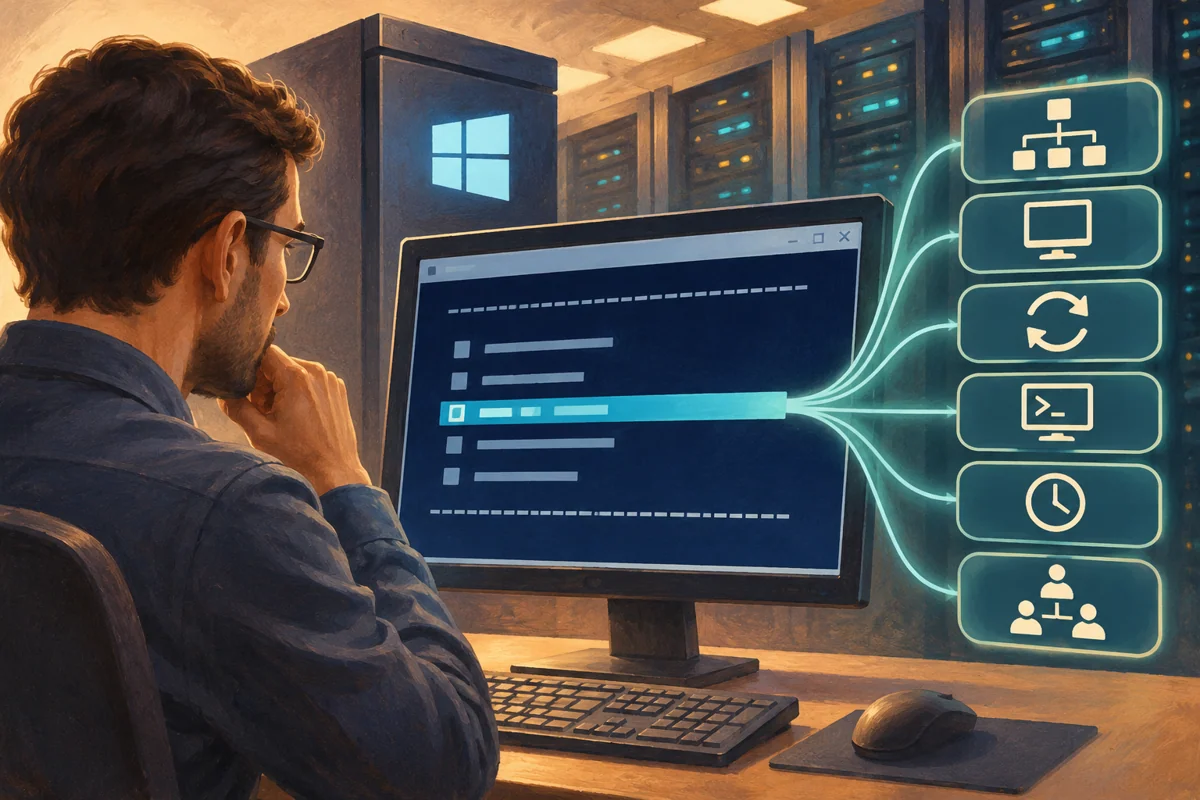 Establishing a Server Core baseline with the SConfig menu
Establish a coherent Server Core baseline using SConfig. Prepare identity, networking, membership, maintenance and access decisions, then…