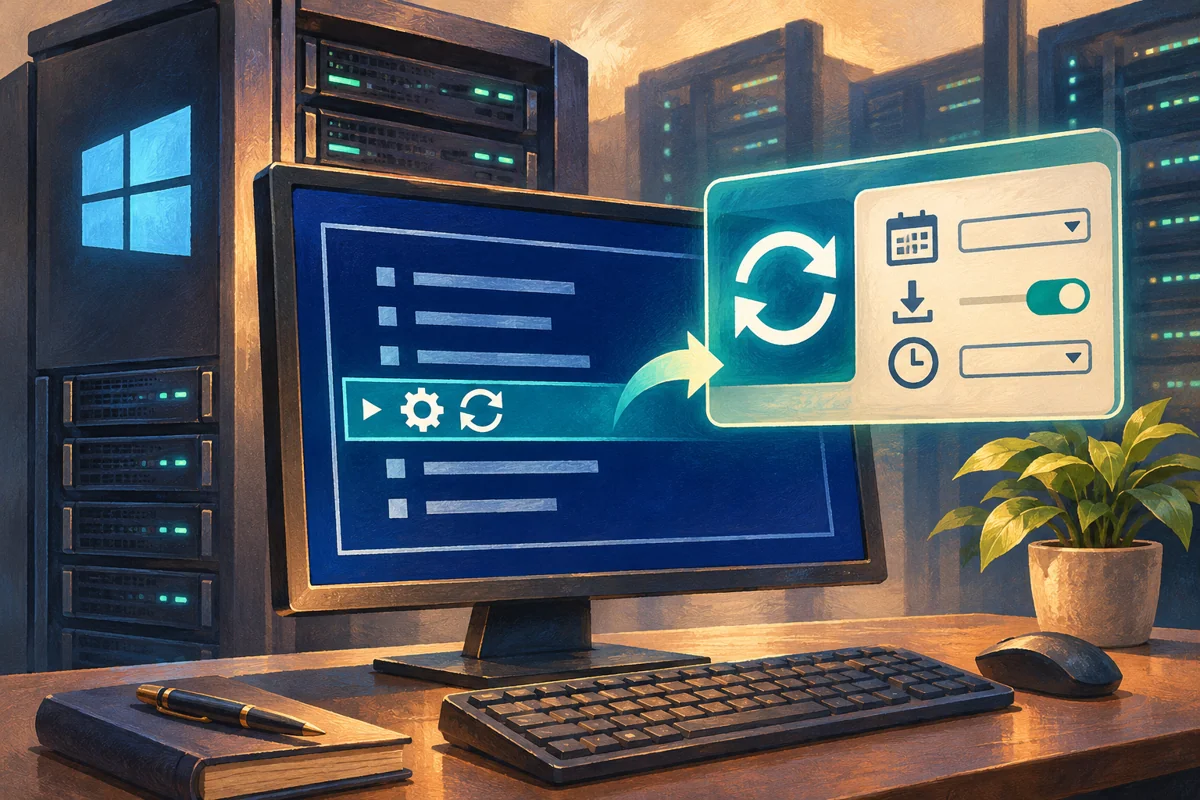
An update mode allocates work. Automatic installation, downloaded updates waiting for an operator and manually initiated scans each require someone to notice results and complete the maintenance cycle. Choose the setting only after deciding who owns that work.
This article is for Windows Server 2019, 2022 and 2025 administrators. Netcloud24 prepares the agreed update configuration for a Managed environment. Customers should agree maintenance requirements with the service team rather than change local modes to work around an application complaint.
Find the governing patch process
Determine whether the server follows local settings, domain policy or a central management platform. SConfig is an individual-server tool and does not replace fleet deployment rings, approval rules or role-aware restart orchestration.
Identify the people responsible for update approval, installation, restart and application acceptance. Those can be different roles. A download-only setting without an installation owner can leave the machine permanently waiting.
Record user hours, scheduled jobs and integration activity. An apparently quiet UK overnight window may coincide with processing elsewhere. Check the server’s actual time zone rather than assuming the displayed hour matches the business calendar.
Compare the available behaviours
Automatic mode checks for and installs updates under the applicable configuration and policy. The operational team still needs to monitor failure, restart requirements and service health. Automatic is not a promise that every update will succeed without attention.
Download only makes content available while installation still requires action. That can support a planned window, provided reporting tells an owner what is pending. Downloaded and installed are different states.
Manual mode does not perform automatic checking through that local mode. It needs an explicit scan and installation process. It should not become an indefinite exception because nobody wanted a restart during one busy afternoon.
Microsoft describes the local SConfig automatic behaviour as daily installation at 03:00. Effective policy and server time zone matter. That default is not evidence that 03:00 is safe for the hosted application.
Record the current selection
Sign in through an approved administrative session and open the menu:
SConfigOn 2022 and 2025 Core it normally starts automatically. On 2019 it commonly needs a manual launch. Read the actual labels because layout and numbering can vary.
Open Update Settings and preserve the original choice in the change record. Do not start toggling modes to see what happens before understanding which system owns the effective setting.
Inspect applied policy
For a domain-managed server, a computer-policy summary can help identify the controlling GPOs:
gpresult /r /scope computerA summary is not a complete explanation of every update option. Use a detailed policy report or the authorised management console where needed, protecting internal domain and group information when sharing it.
Review any central deployment assignment as well. A local menu display does not prove that approval source, restart rules and reporting are all controlled locally. Resolve ownership conflicts through the team responsible for those policies.
Apply the approved mode
Confirm the intended scan, installation and restart process, then select the appropriate displayed option in SConfig. Return to the main menu and verify the reported result.
Record why the mode was chosen, who owns pending work and when it will be reviewed. If it reverts, investigate the governing policy instead of repeatedly forcing the local value.
Changing a mode is not the same as running an update batch. It does not uninstall previously applied updates or erase a pending restart. Treat the current servicing state separately.
Provide reporting suitable for Core
Server Core does not offer the normal signed-in desktop Action Center workflow. Pending downloads cannot depend on an administrator happening to see a graphical notification.
Use monitoring or management reports that expose scan failures, applicable updates, installation results and restart status. Assign absence cover so maintenance does not stop when one administrator is away.
Check how long the process would take to notice an untouched server. If no one logs in for a month, the reporting arrangement should still reveal unfinished work rather than silently waiting for the next console visit.
Validate source and approval behaviour
During an approved window, perform a controlled scan through the separate download-and-install workflow. Compare the results with the expected source and product approvals.
No offered updates can mean the machine is current, but it can also mean the source is unavailable or approvals are incomplete. Investigate the context before declaring compliance. A larger list on another machine can reflect different roles or release state.
Do not bypass WSUS or other central controls with ad hoc registry changes. That can alter approvals and reporting without a coherent new design. Correct the responsible source configuration through its owner.
Make restart policy part of acceptance
A mode label alone does not explain every restart condition. Review effective policies and the management platform’s orchestration, then agree how users and background work are protected.
Redundant systems need sequencing. Patching two nodes automatically at the same local time does not coordinate draining, validation or availability. Follow the service-specific maintenance plan.
After installation and restart, verify the resulting build and representative client workflow. Confirm protection and monitoring return. The operator should not equate an installation-success status with complete business acceptance.
Keep exceptions narrow and reversible
If a vendor asks to defer a package, identify the exact item, reason, mitigation, owner and review date. Avoid suppressing unrelated updates or leaving the entire service on an unowned manual process.
For a mistaken local choice, restore the recorded mode and verify effective policy. This does not reverse updates already applied. A regression needs its own supported diagnosis and recovery method.
For example, an approved temporary delay during year-end processing should have a named date to resume normal maintenance and a check that the postponed work actually completes. Merely writing manual in the record leaves that responsibility unresolved.
Close the configuration decision
Keep the final mode, controlling policy, reporting route and next maintenance point with the service record. Another authorised administrator should be able to determine what happens next without reconstructing your intent from menu screenshots.
See performing a patch window, effective policy diagnostics and Microsoft’s SConfig documentation.
 Deploying Windows Server 2025 with a graphical desktop
Build Windows Server 2025 Desktop Experience through a controlled clean installation. Protect disks, select the correct image and licensing…
 Building a manageable Windows Server 2022 Core instance
Plan and install a supportable Windows Server 2022 Core instance. Verify workload fit, image and storage, then establish SConfig, remote…
 A supported clean build of Windows Server 2019 Desktop Experience
Create a justified Windows Server 2019 graphical deployment with protected disks, correct media and verified servicing. Accept the…
 Selecting a Windows Server interface for the workload and support team
Choose the Windows Server interface around application support, maintenance tasks and recovery skills. Compare Core and Desktop Experience,…
 Establishing a Server Core baseline with the SConfig menu
Establish a coherent Server Core baseline using SConfig. Prepare identity, networking, membership, maintenance and access decisions, then…
