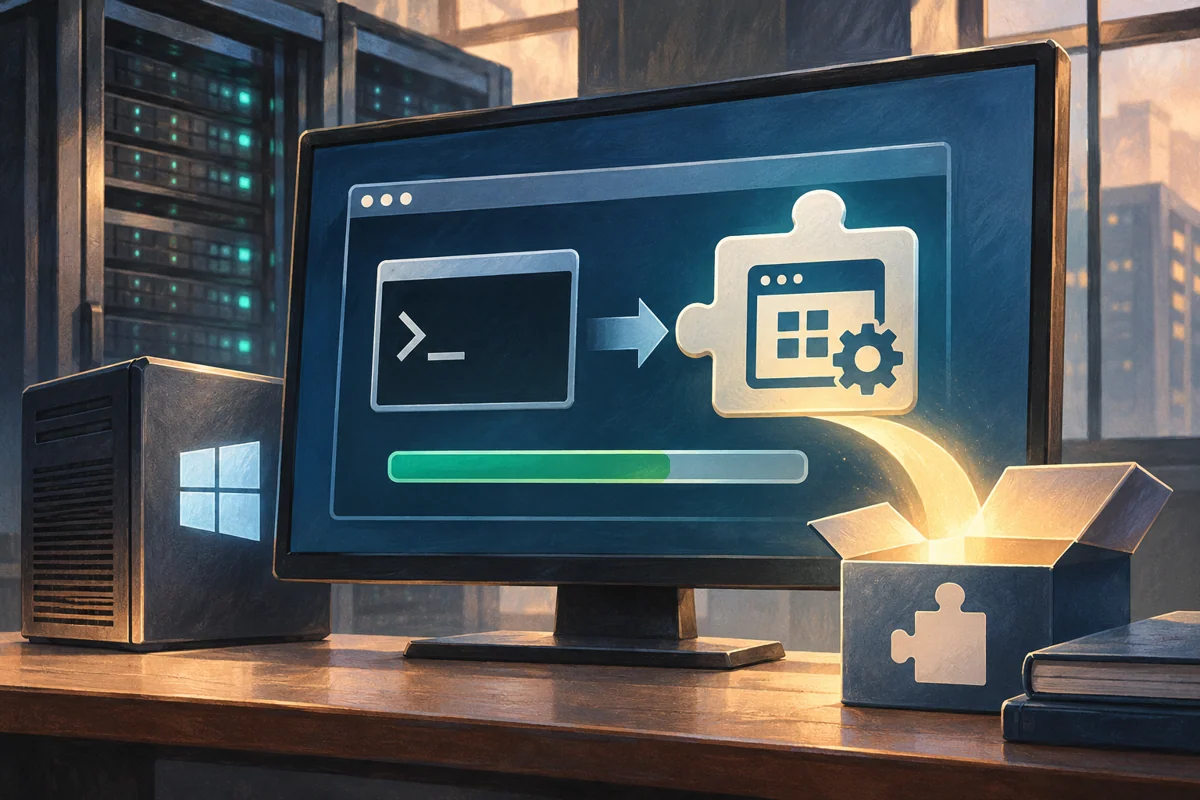
Server Core sometimes needs a selected Windows component for a supported application or maintenance tool. The Application Compatibility Feature on Demand provides a defined package for those requirements. It should be installed to satisfy a known dependency, not to assemble an unofficial desktop through trial and error.
This guide covers Windows Server 2019, 2022 and 2025 Core for authorised administrators. Netcloud24 prepares agreed components within a Managed deployment. Customers should provide vendor requirements and request preparation through support instead of adding optional packages to the working environment themselves.
Check the exact compatibility requirement
Identify the application, version and missing dependency. Verify vendor support for Core, including installation, ongoing maintenance and recovery. An executable launching after another package is added does not establish production support.
Microsoft’s list includes selected tools such as MMC and Event Viewer from 2019. Later releases include additional components, so check the list for the installed release rather than assuming the newest contents exist everywhere.
A console can also need its associated role or feature. Compatibility binaries do not create a configured cluster, IIS service or another complete workload. Record both the package dependency and the underlying service requirement.
The package does not install full Desktop Experience. If the workload requires that option, plan a supported rebuild and migration. Core cannot be converted to the complete desktop through this capability on these releases.
Read the current system and capability state
Get-CimInstance Win32_OperatingSystem |
    Select-Object Caption, Version, BuildNumber
Get-ItemProperty 'HKLM:\SOFTWARE\Microsoft\Windows NT\CurrentVersion' |
    Select-Object InstallationType
Get-WindowsCapability -Online |
    Where-Object Name -like 'ServerCore.AppCompatibility*'
Run in elevated Windows PowerShell on the intended machine. Confirm Core and record the name and state. If already installed, investigate the actual tool failure instead of repeating installation.
The documented capability identifier is ServerCore.AppCompatibility~~~~0.0.1.0. Its presence does not mean arbitrary source media is suitable; release, payload and language requirements still matter.
Choose an authorised payload source
Use the organisation’s permitted online optional-content source or matching official media. Central servicing policy can determine whether Windows Update is contacted, so do not bypass the policy simply to make the operation continue.
For media installation, obtain the correct Feature on Demand or Languages and Optional Features ISO through an authorised channel. A general installation ISO or another Windows release is not automatically a compatible source.
Prepare recovery and console access, check capacity and agree any restart. Optional components expand the maintained system footprint, so keep a reason and owner in inventory.
Install through the approved online route
$capability = 'ServerCore.AppCompatibility~~~~0.0.1.0'
$result = Add-WindowsCapability -Online -Name $capability
$result | Format-List
Review the complete result and restart requirement. If retrieval fails, preserve the error and check source policy, connectivity and permissions before changing the source.
Do not add other capabilities at the same time without a documented requirement. A narrow change makes it possible to confirm which dependency was resolved and avoids unnecessary future servicing work.
Use the correct media path for the release
Mount the matching ISO and verify its actual drive letter and directory layout. The following examples assume the authorised media is E:. Run only the command appropriate to the operating system and media:
# Windows Server 2022 or 2025:
Add-WindowsCapability -Online -Name 'ServerCore.AppCompatibility~~~~0.0.1.0' `
    -Source 'E:\LanguagesAndOptionalFeatures' -LimitAccess
# Windows Server 2019:
Add-WindowsCapability -Online -Name 'ServerCore.AppCompatibility~~~~0.0.1.0' `
-Source 'E:\' -LimitAccessThe path difference is significant. LimitAccess prevents contacting Windows Update for the operation, so the chosen source must provide the payload. It does not repair a mismatched ISO or missing read access.
Keep the source identity with the change record and detach media when the platform process allows. An optical drive being mounted proves only attachment, not compatibility with the installed system.
Restart, service and verify
Complete the required restart in the agreed window. Query the capability afterward:
Get-WindowsCapability -Online `
    -Name 'ServerCore.AppCompatibility~~~~0.0.1.0'
Expect Installed. Follow the documented servicing guidance to apply appropriate operating-system updates after adding the payload, then finish any further required restart.
Test the particular tool or application workflow that justified the package. A successful capability result does not prove a console can reach its service or that the vendor supports the resulting application stack.
Use a harmless representative task and the intended administrative identity. An added local interface does not remove normal permissions or make ordinary browsing under a privileged account appropriate.
Investigate a failed dependency directly
For missing payloads, inspect release and language match, source path and controlling policy. For denied access, check elevation and read permissions without granting broad write access to media repositories.
If a tool remains absent, confirm it is included for that release. If it opens but its role is unavailable, inspect the underlying feature and service prerequisites. These are different failure categories.
If the application still fails, return to its supported dependencies and logs. Repeatedly adding unrelated packages or disabling protection is not a reliable compatibility method.
Check the application’s supported maintenance procedure after future updates too. An interface continuing to open is not enough if its provider or remote connection no longer works. Keep a harmless functional test with the capability’s purpose so routine patch acceptance can verify the dependency without experimenting on production data.
Keep lifecycle and removal deliberate
Record which maintenance procedure or application relies on the capability. Review provisioning again for an in-place operating-system upgrade; do not assume a package manually added to the old installation automatically remains available afterward.
Before removal, confirm no active support task depends on the tools. Use the supported Remove-WindowsCapability operation for the exact capability, read the result and complete a restart if required.
Capability removal does not undo application changes or data created through a tool. Preserve those separately and verify the original management route afterward. Keep any required permanent dependency visible to future hardening reviews.
For example, a vendor might approve Core with a documented console dependency. Retain that statement and a successful maintenance test, so a later administrator does not remove the package as an unexplained optional feature. Recheck the assumption when the vendor releases a new version.
See interface selection and Microsoft’s compatibility capability documentation for supported components and media layouts.
 Deploying Windows Server 2025 with a graphical desktop
Build Windows Server 2025 Desktop Experience through a controlled clean installation. Protect disks, select the correct image and licensing…
 Building a manageable Windows Server 2022 Core instance
Plan and install a supportable Windows Server 2022 Core instance. Verify workload fit, image and storage, then establish SConfig, remote…
 A supported clean build of Windows Server 2019 Desktop Experience
Create a justified Windows Server 2019 graphical deployment with protected disks, correct media and verified servicing. Accept the…
 Selecting a Windows Server interface for the workload and support team
Choose the Windows Server interface around application support, maintenance tasks and recovery skills. Compare Core and Desktop Experience,…
 Establishing a Server Core baseline with the SConfig menu
Establish a coherent Server Core baseline using SConfig. Prepare identity, networking, membership, maintenance and access decisions, then…
