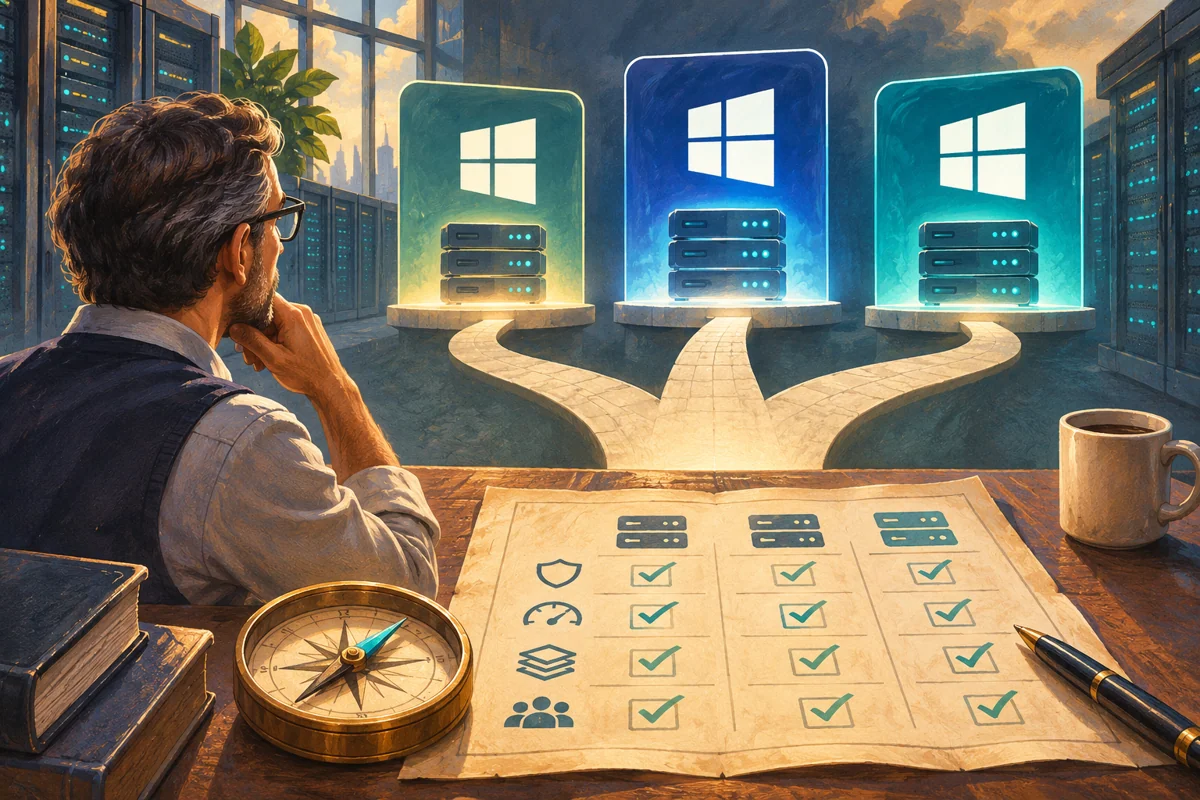
The Windows version decision is easiest when it starts with the work your organisation needs to complete. A specialist application, its database and its integrations form one system. Selecting Windows Server solely because its release number is newest can leave one of those dependencies unsupported.
Netcloud24 prepares the agreed managed environment after reviewing the software and users. You do not need to perform the operating-system installation yourself. The useful customer input is accurate application information, vendor requirements and the business constraints that determine the right deployment.
Build a support picture for the whole application
List the exact product releases, including optional reporting modules, payroll components and import utilities. Obtain the vendor’s supported Windows Server versions for those releases. A statement that software works on Windows does not establish support for every server generation or multi-user deployment.
Put the database engine, data drivers, framework requirements and external connections beside the main application. A current accounting application may still depend on an old report designer or a vendor connector with a narrower support matrix.
Record how people use the software. Interactive Remote Desktop sessions, scheduled background processing and a web application have different requirements. Confirm that the vendor permits the intended server and shared-user arrangement under its licence.
Use the release choices as different planning options
Windows Server 2019 can be appropriate where a supported legacy dependency requires it. The important additional question is how that dependency will be replaced. A new deployment on an older platform should have a named migration owner and a realistic timeline.
Windows Server 2022 can suit a workload with established vendor support and a tested operational design. Confirm its remaining support horizon against the expected life of the service rather than assuming that a familiar release can be retained indefinitely.
Windows Server 2025 provides a newer platform for applications that explicitly support it. Check the backup agent, drivers, security software and integrations as well as the main product before accepting it for production.
These are compatibility decisions, not universal performance rankings. An inefficient query, insufficient memory or a delayed external API can remain a problem on a newer operating system. A migration should have a specific objective and evidence that it addresses the relevant limitation.
Make support dates part of the decision
Microsoft publishes extended support end dates of 9 January 2029 for Windows Server 2019, 14 October 2031 for Windows Server 2022 and 14 November 2034 for Windows Server 2025. Check the applicable official product entry when approving the project.
The Microsoft date and the software vendor’s date are separate. An application supplier can stop supporting a particular release before the underlying operating system reaches its own endpoint. Record both horizons and include time for testing and replacement.
A sensible migration budget includes database conversion, integration work, user acceptance and training. Waiting until the platform deadline leaves little room for a component whose replacement takes longer than expected.
The official lifecycle entries for 2019, 2022 and 2025 provide the product-specific reference points.
Do not confuse release with desktop or licence edition
Windows Server release, edition and installation option are different choices. Standard and Datacenter are editions; Server Core and Desktop Experience are installation options. A business application’s requirement for a graphical desktop is not answered merely by choosing a particular release year.
Core omits the full local desktop and is managed through command-line and supported remote tools. Desktop Experience supplies the graphical interface. For Windows Server 2019, 2022 and 2025, changing between those options requires a clean installation rather than adding a desktop feature later.
Netcloud24 selects and prepares the agreed supported environment. The administrator articles in this knowledge base explain the underlying technology; they are not a requirement for every managed customer to build their own server.
Validate tasks, not just an installer
A representative test should use the candidate Windows version, supported application release, intended database and a safe dataset. Keep test integrations from sending live invoices, payments or external messages.
Have the application owner check ordinary user access, concurrent work, printing, reports, imports and exports. Include less frequent activities such as month-end processing. A login test can miss the one legacy dependency that fails during a critical business deadline.
Verify recovery through the software’s supported method as well. A working application with an untested backup format is not ready to become the only live source of company information.
For example, a company may find that everyday data entry works on the candidate platform but a quarterly export depends on a driver the vendor no longer supports. That result should change the dependency plan before cutover, rather than becoming an exception discovered under deadline pressure.
Choose the transition method and data boundary
A clean build provides a separate operating-system instance, followed by application installation and data recovery. A migration transfers the workload through an agreed process. An in-place upgrade retains supported existing configuration while replacing the operating system. Each has different eligibility and recovery requirements.
A Microsoft-supported operating-system path does not override a vendor’s restrictions. Review the actual source edition, installation option, role and application together before choosing an in-place method.
For a replacement server, define when the old application stops accepting changes, how the final dataset is transferred and who accepts the new results. Avoid independent live entry on both systems. Once application data has been converted or new transactions entered, rollback can require reconciliation rather than simply switching back.
Include the people who own integrations and endpoints in acceptance. A replacement server can meet the application supplier’s requirements while an office printer or external connector still needs a supported update. Resolve that dependency explicitly rather than relying on a temporary workaround that nobody owns.
Keep a short decision record
Record the selected release, the support evidence, important dependencies, acceptance results and planned service life. If 2019 is necessary, document why and what will enable its replacement. If 2025 is selected, retain evidence that the complete workflow was accepted.
Provide those application details when discussing the managed deployment, and use the service preparation guide to understand onboarding. Administrators comparing installation options can read Core and Desktop Experience selection.
 Remote Desktop access to a hosted Windows server: a user’s guide
Connect from Windows or macOS to the environment prepared for your team. Understand account details, VPN and gateway requirements,…
 From order to handover: what a Managed Windows VPS includes
Understand how Netcloud24 prepares a Managed Windows environment, what deployment information is needed and how licensing, application…
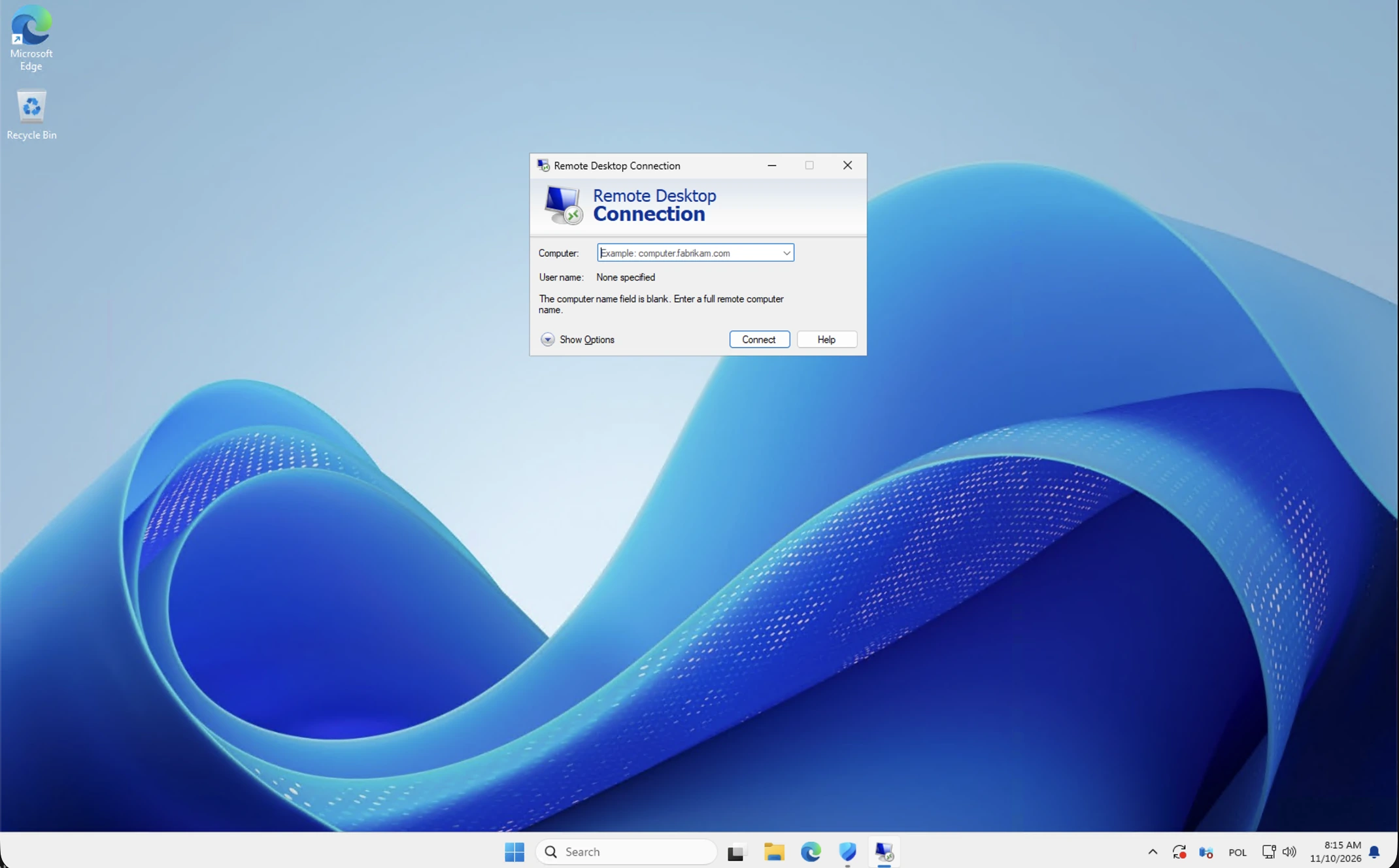 Your first Windows VPS sign-in: a visual Remote Desktop walkthrough
Open your prepared Windows workspace using the supplied Remote Desktop destination and individual account. Follow the illustrated prompts,…
 NetCloud24 Free Hosting: 5 GB, DirectAdmin, SSH & Node.js
NetCloud24 H1 gives you 5 GB of free web hosting storage, your own domain, DirectAdmin, SSH access and Node.js. There are no compulsory…
