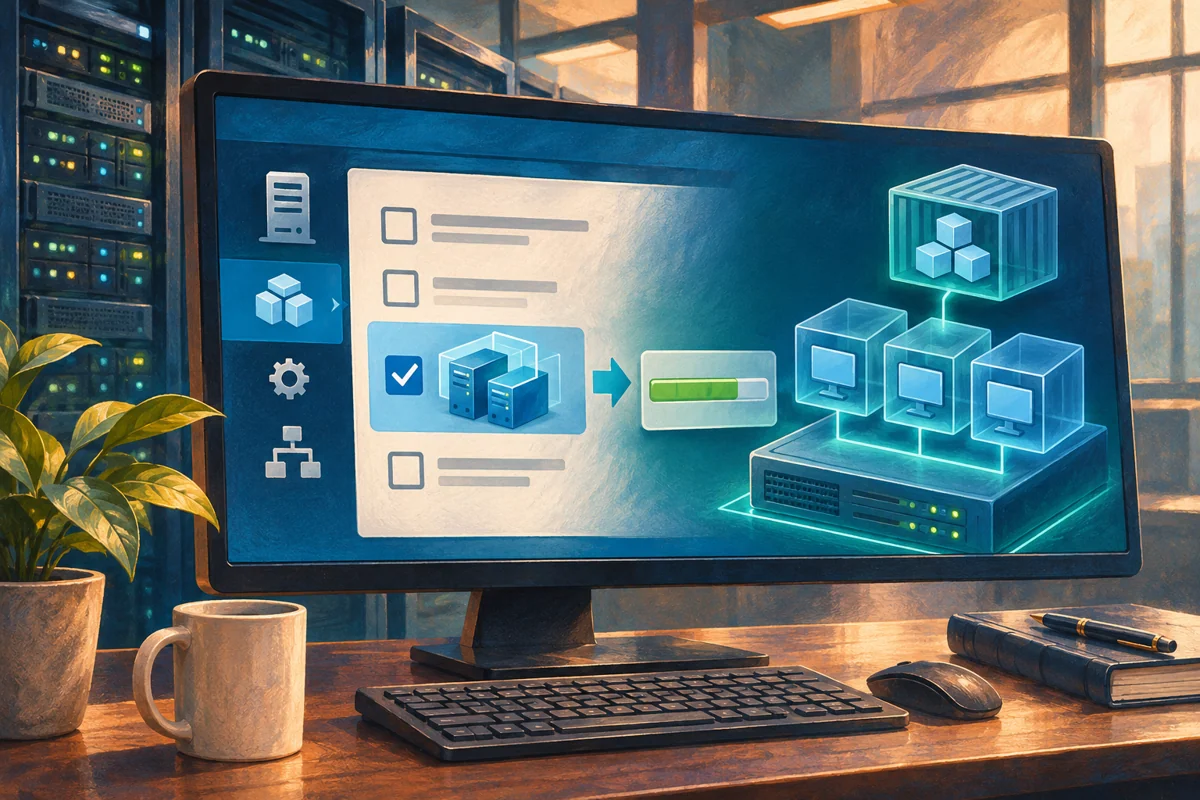
Platform: Windows Server 2019, 2022 and 2025, with the version and hosting restrictions described below.
Decide who owns the hypervisor before installing anything
Hyper-V belongs at the infrastructure layer: it controls the execution, storage and virtual networking of the machines above it. For a managed Netcloud24 environment, the hosting team prepares this layer as part of the agreed service. A customer with an ordinary Windows VPS should not need to install a second hypervisor to use their server. The procedure below is for an authorised infrastructure administrator building a dedicated host or an explicitly supported nested environment.
Begin by establishing whether Windows is running directly on hardware or inside another virtual machine. That answer determines who can expose processor extensions, alter firmware and authorise nested networking. Installing a role inside a guest cannot override restrictions imposed by the outer platform. A successful feature installation also does not confer permission to create extra virtual machines on a hosted service.
Make the host design reviewable
Set out the proposed guest operating systems, application owners, memory demand, storage growth and recovery arrangements. Include the management operating system in the resource budget. Minimum installation requirements are far below the capacity needed for a useful production virtualisation host, particularly when backups, checkpoint merges or several guests start together.
Keep a dependable console or out-of-band connection available. The role installation requires a restart, and later virtual-switch work can disrupt normal management networking. Record existing services before repurposing a server. A machine already acting as a domain controller or public application server needs a migration decision, not an extra role added without reviewing its responsibilities.
Choose supported hardware, storage and drivers. Confirm guest licensing and application support separately from Windows feature availability. For nested use, check the actual processor family and outer-host matrix: Microsoft’s AMD nesting support requires a newer outer Hyper-V version and VM configuration than the earliest Intel nesting implementation. Do not infer support solely from the guest’s Windows Server version.
Read the machine evidence
Run the following in an elevated Windows PowerShell session on the proposed host. Retain the output with the deployment record, excluding information that does not belong in a shared ticket. Check the computer name carefully if several remote sessions are open.
hostname
systeminfo.exe
Get-ComputerInfo | Select-Object WindowsProductName,OsBuildNumber,HyperVisorPresent
Get-CimInstance Win32_Processor |
  Select-Object Name,VirtualizationFirmwareEnabled,SecondLevelAddressTranslationExtensions
Get-Volume | Select-Object DriveLetter,FileSystemLabel,SizeRemaining,Size
Before a hypervisor starts, systeminfo can report its individual hardware requirements, including virtualisation support and address translation. Once a hypervisor is detected, the output may say those individual requirements are not displayed. Interpret that message in context; it is not an instruction to disable an existing hypervisor. On physical hardware, confirm the corresponding UEFI or BIOS settings with the hardware owner. On a guest, ask the platform owner to verify exposure of the extensions.
Install the role and schedule its activation
Inspect the existing feature state, then install Hyper-V with its administration components. Windows Server’s ServerManager commands are used here; installing client management tools elsewhere does not make that client a Windows Server host. Avoid an automatic restart until the maintenance owner has confirmed the server is ready.
Get-WindowsFeature Hyper-V,Hyper-V-PowerShell
$installation = Install-WindowsFeature Hyper-V -IncludeManagementTools
$installation | Format-List Success,ExitCode,RestartNeeded,FeatureResult
Read both Success and RestartNeeded. A returned object is not proof that the operation finished successfully. Missing feature payloads require a matching approved source and servicing-log investigation, rather than random optional-feature additions. Perform the controlled restart once prerequisites and maintenance arrangements are satisfied. If installation was attempted inside an unsupported VPS, stop there and resolve the platform requirement instead of applying boot or security workarounds.
Prove the restarted host can be administered
After reconnecting, verify the Virtual Machine Management service, Hyper-V module and host settings. An empty VM list is the expected result on a fresh host. Note the default disk and configuration directories before creating any guests; otherwise growing virtual disks can consume the operating-system volume.
Get-Service vmms
Get-WindowsFeature Hyper-V
Get-VMHost | Select-Object ComputerName,VirtualMachinePath,VirtualHardDiskPath
Get-VM
Get-VMSwitch
Get-WinEvent -LogName 'Microsoft-Windows-Hyper-V-VMMS/Admin' -MaxEvents 20
The service running and the management query succeeding establish basic host readiness. They do not prove a supported guest can boot. Once approved storage and networking are available, use a disposable test VM to check start, guest boot and orderly shutdown. Record the observed result rather than describing an unperformed test as successful. Production application acceptance follows its own workload checklist.
Place future VM files on the intended storage
Set host defaults only after verifying the data volume and its protection. The example uses E: deliberately; drive letters are local choices and must be checked against the server inventory. Creating directories does not establish capacity, resilience or backup.
New-Item -ItemType Directory -Path 'E:\VirtualMachines','E:\VirtualDisks' -Force | Out-Null
Set-VMHost -VirtualMachinePath 'E:\VirtualMachines' `
  -VirtualHardDiskPath 'E:\VirtualDisks'
Get-VMHost | Select-Object VirtualMachinePath,VirtualHardDiskPath
These settings guide future creation; existing VM disks are not moved. Use supported Hyper-V storage-migration methods when moving established guests. Allow headroom for changed blocks, merges, replica logs and recovery activity as well as nominal guest capacity. A volume that fits the initial VHDX files but cannot support maintenance is not adequately sized.
Resolve failures at the responsible layer
A missing-capabilities error normally leads back to processor support, firmware or the outer hypervisor. The nested guest cannot run Set-VMProcessor against itself to expose extensions: that change belongs on the outer host and normally requires the outer VM to be off. A guest-start failure after installation may instead involve startup memory, a pending restart, configuration compatibility or a hypervisor event. Preserve the precise error before trying a repair.
Do not disable Credential Guard, other security controls or unrelated boot protections merely because an online example mentions them. Establish the actual incompatibility and use a supported resolution. Where the server already runs other workloads, a restart or role removal has a wider effect than the installation screen suggests.
Hand over the host with a recovery route
Record the host build, support boundary, management connection, storage paths and the owner responsible for VM backups. If a new installation is cancelled before guests exist, feature removal and the associated restart can be planned. Once guests contain useful data, migrate or protect them and confirm all dependencies before removing Hyper-V. Uninstalling the role does not relocate those machines.
For a managed service, the useful customer outcome is a prepared, supported environment with clear access and escalation arrangements. Infrastructure commands remain an operational responsibility for authorised staff. The host is ready when its team can create, monitor and recover the agreed guests, including when the normal management path is unavailable.
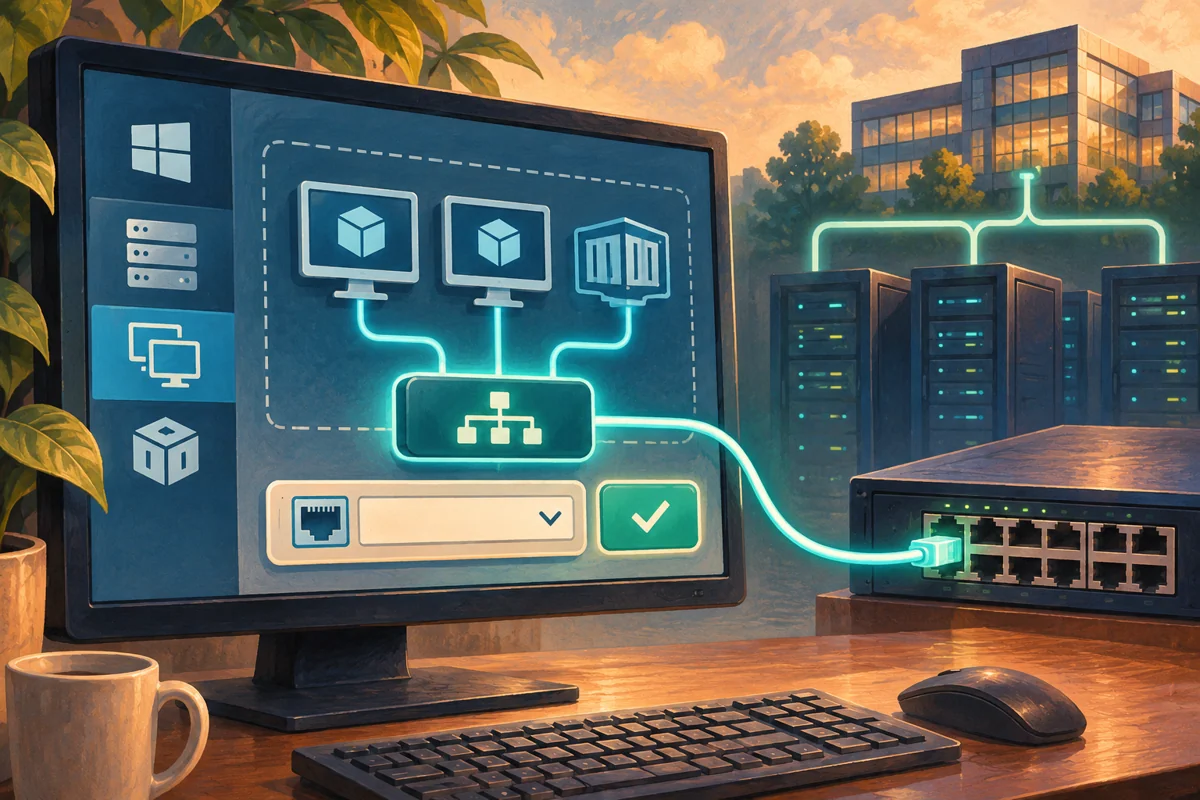 Planning an external Hyper-V switch without losing host access
Design a Hyper-V external switch around reliable host access, explicit uplink and VLAN choices, then prove a test guest’s path and preserve…
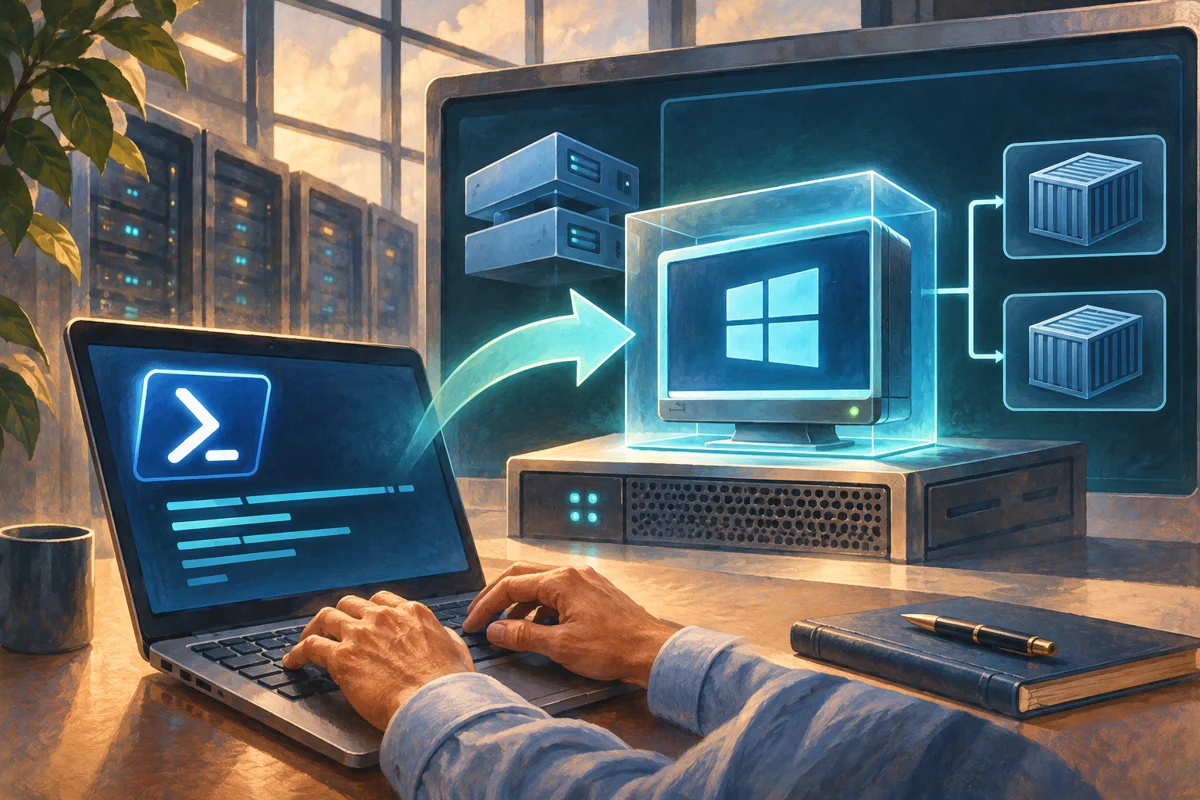 Provisioning a UEFI-based Hyper-V guest with PowerShell
Provision a supported Generation 2 guest from an agreed specification, configure UEFI and installation media, verify the first boot, and…
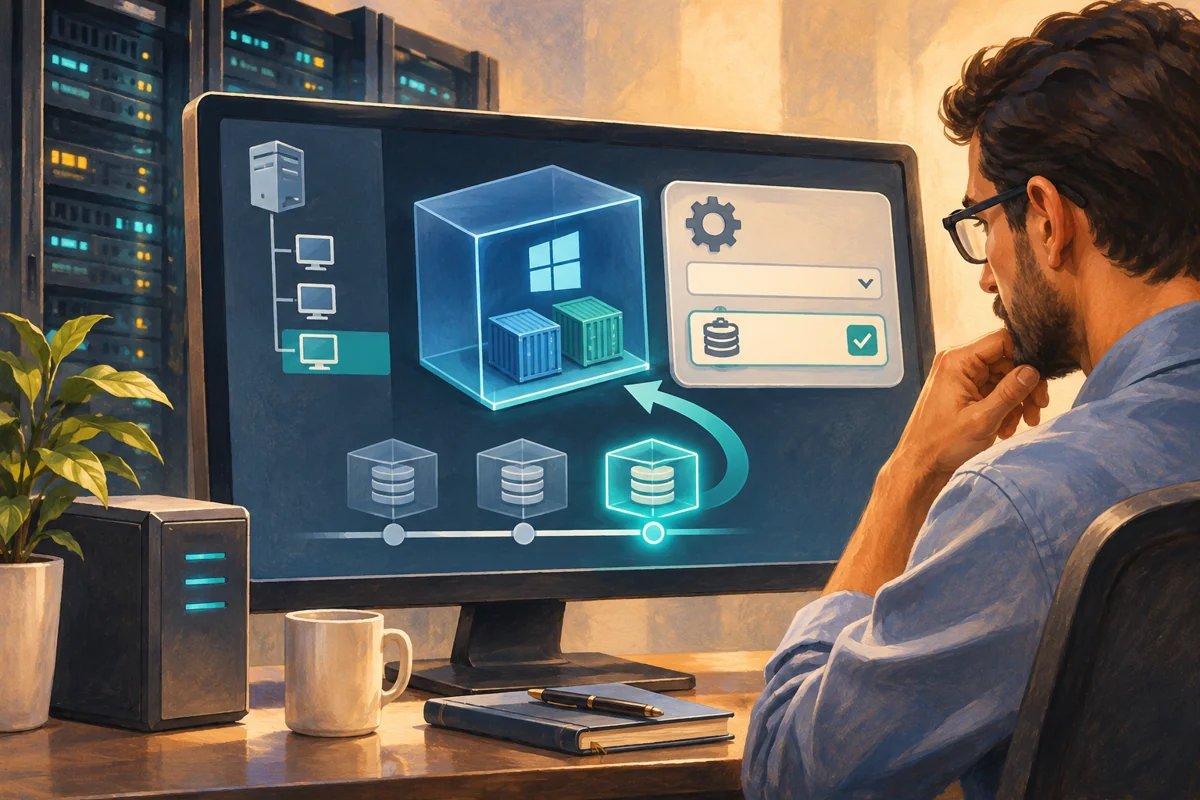 Managing Hyper-V production checkpoints through a maintenance change
Use Hyper-V production checkpoints as a controlled maintenance tool, make fallback behaviour explicit, validate guest coordination, and…
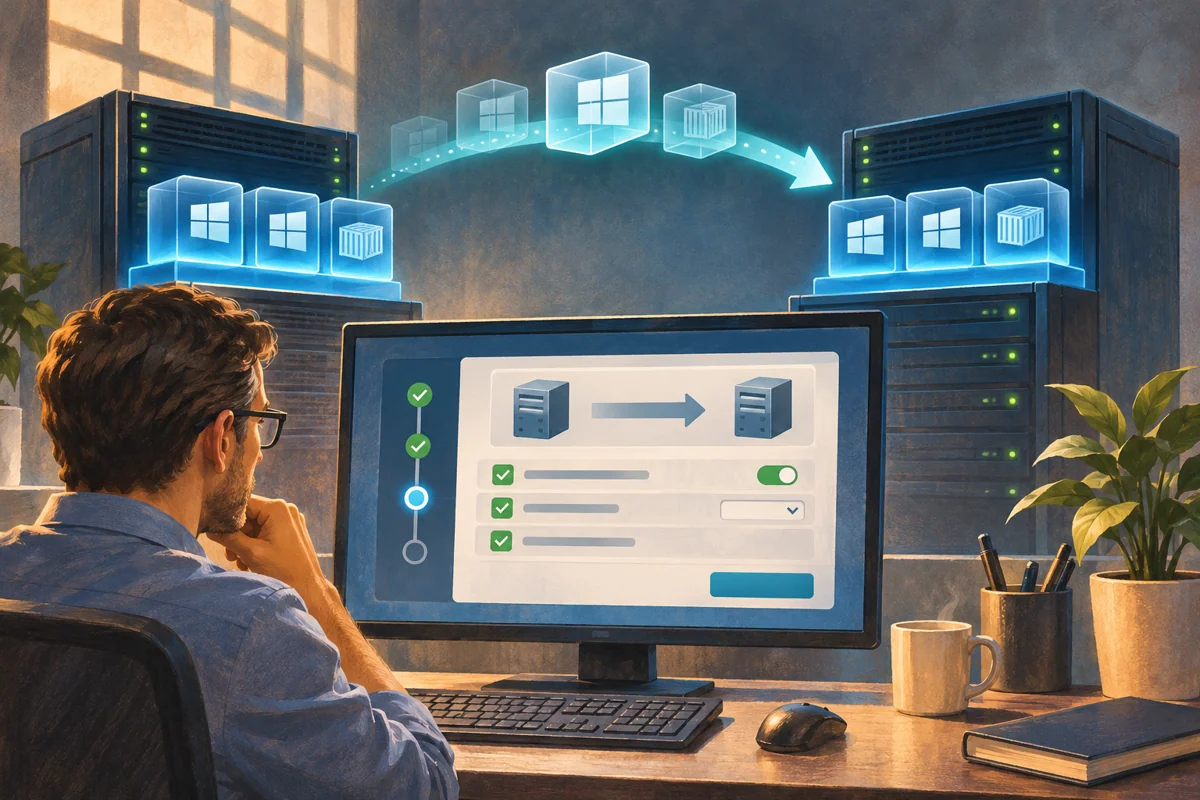 Designing and validating recovery with Hyper-V Replica
Build Hyper-V Replica around an application recovery runbook, restricted HTTPS trust, capacity and lag monitoring, then demonstrate an…
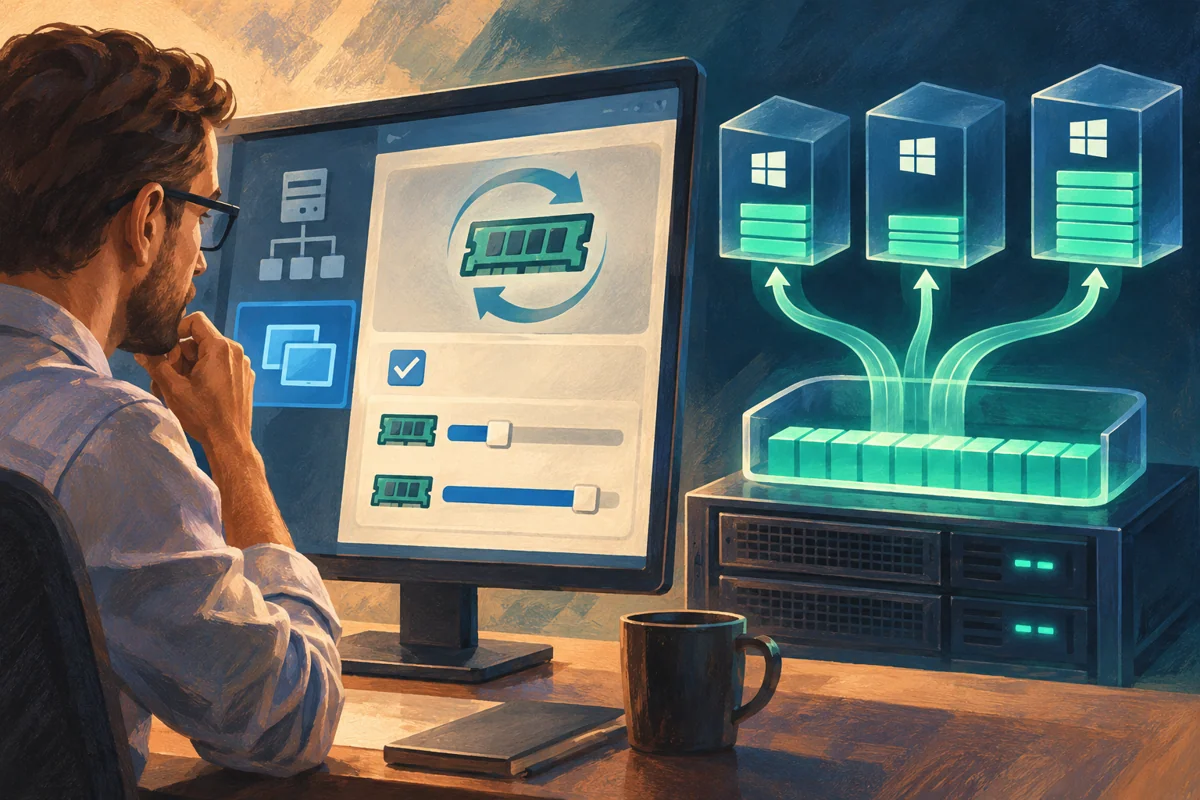 How to Configure Hyper-V Dynamic Memory
Applies to: Windows Server 2019, Windows Server 2022, and Windows Server 2025.Dynamic Memory adjusts virtual-machine RAM within safe…
