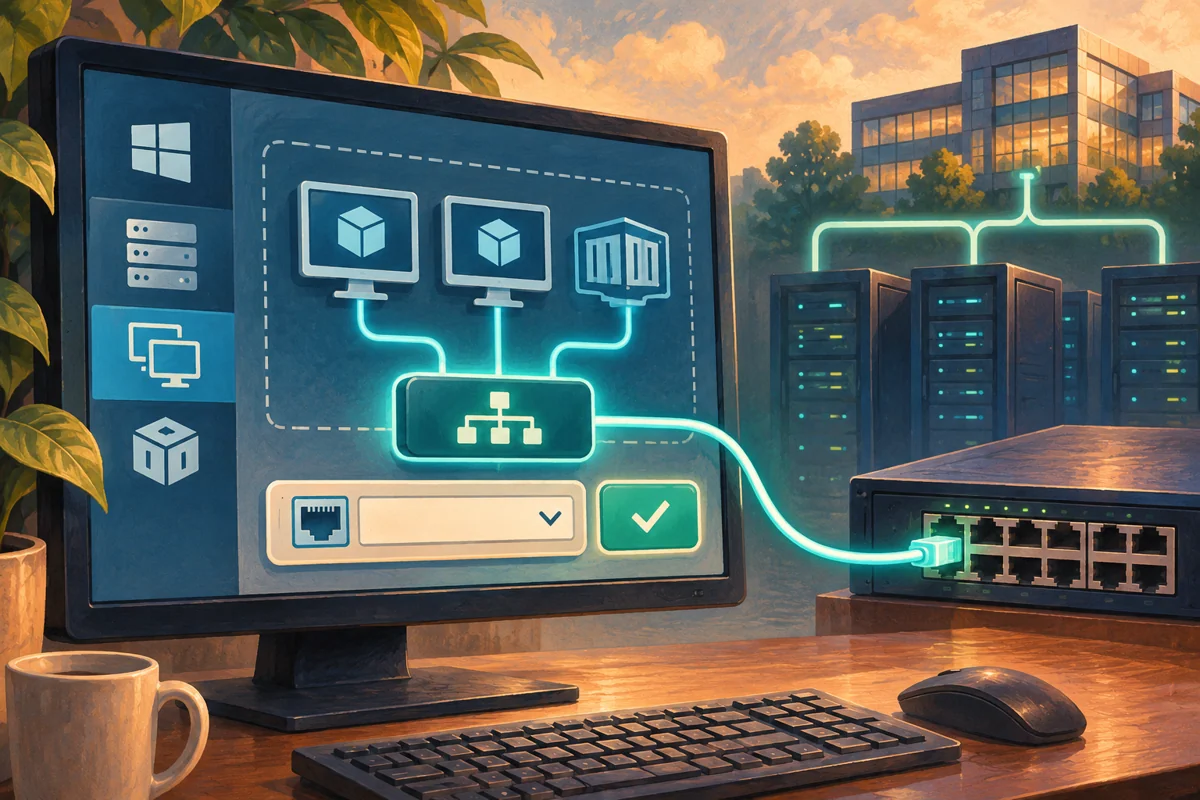
Platform: Windows Server 2019, 2022 and 2025, with the version and hosting restrictions described below.
Start with the management connection
The greatest immediate risk in creating an external Hyper-V switch is losing the connection used to manage the host. The switch binds to a physical network adapter and changes how traffic reaches the management operating system and its guests. A sound plan therefore starts with a console connection, a recorded network baseline and an identified uplink, rather than the switch-creation command.
In a managed Netcloud24 deployment, the infrastructure team establishes the switch and upstream networking before handing over the customer environment. These instructions describe that administrative task. They do not imply that a customer should modify a provider’s hypervisor or attach extra virtual MAC addresses without an agreed networking arrangement.
Select a network model with a clear purpose
An external switch uses a physical uplink to reach another network. An internal switch connects the host and local VMs without that uplink, while a private switch connects the VMs only. None of those choices automatically supplies DHCP, DNS, a default gateway or NAT. A guest can be attached to an external switch yet remain isolated by its address configuration or upstream policy.
This procedure uses one uplink with management sharing. A redundant Switch Embedded Teaming design needs a compatible adapter set and a wider bandwidth and failure review. Do not select several adapters or an existing LBFO team just to make an external switch appear resilient. On modern Windows Server Hyper-V hosts, the supported teaming choice matters.
Identify whether the network carries untagged traffic or a VLAN trunk. Agree the host management VLAN and each guest VLAN separately. The physical link being Up says nothing about correct tagging. For hosted or nested systems, verify the upstream platform accepts the intended MAC and source-address behaviour. An inner switch cannot override the outer platform’s anti-spoofing controls.
Capture the baseline by adapter identity
Use the console to inspect names, descriptions, MAC addresses and current IP configuration. Record the DNS servers, default route and any specific management routes. The adapter called Ethernet 2 today is not necessarily the adapter an old handover describes. Correlate it with the actual physical or virtual port.
Get-NetAdapter | Select-Object Name,InterfaceDescription,ifIndex,MacAddress,Status
Get-NetIPConfiguration
Get-DnsClientServerAddress
Get-NetRoute -AddressFamily IPv4
Get-VMSwitch
Get-VMNetworkAdapter -ManagementOS
Save this record where it remains accessible if the host disconnects. Check that the selected uplink does not carry a storage or cluster function that will be disturbed. If a second management interface is meant to provide recovery, prove it works before touching the primary path. An untested alternative IP is not a dependable fallback.
Understand management sharing before applying it
AllowManagementOS True gives the management operating system a virtual adapter on the new switch. Its address configuration belongs on the resulting vEthernet interface; the physical NIC becomes the switch uplink. False reserves the selected physical path for virtual networking and requires another working host-management route. Set the value explicitly rather than depending on an assumed default.
Windows may transfer some existing address configuration during creation, but verify the entire result. Do not configure the same static address on both physical and virtual adapters. Review DNS registration and default gateways on multihomed hosts, since duplicated gateways can produce an asymmetric return path that looks like random disconnection.
Management sharing is a connectivity choice, not a quality-of-service policy. It does not reserve bandwidth for administrators or prevent a guest workload from consuming the link. Where the service requires separation, build the relevant VLAN, QoS and traffic design instead of treating the checkbox as isolation.
Create one named switch on the reviewed uplink
This example uses Fabric-A as the already identified adapter and Tenant-Access as the switch name. Confirm both names and existing ownership. Run locally through the recovery-capable session and expect a short reconfiguration interval. Do not retry the command from another remote session before checking whether the first attempt created the object.
Get-NetAdapter -Name 'Fabric-A' -ErrorAction Stop
New-VMSwitch -Name 'Tenant-Access' -NetAdapterName 'Fabric-A' `
  -AllowManagementOS $true
Get-VMSwitch -Name 'Tenant-Access' |
  Select-Object Name,SwitchType,NetAdapterInterfaceDescription
Get-VMNetworkAdapter -ManagementOS
Specifying a physical adapter selects an external switch. A partially completed operation requires inspection of the switch, bindings and host interface, not blind deletion of every virtual adapter. Preserve a working management path while assessing the result. On an established host, switches can have many VM dependencies that are invisible in a single guest’s settings.
Restore the intended host network and add a test guest
Check the new management adapter’s actual name, addresses, DNS and routes. Apply a management VLAN only if the upstream plan requires tagged management traffic. For example, an approved VLAN 110 can be assigned to the management virtual adapter named Tenant-Access; do not use that value on an untagged management network.
Get-NetIPConfiguration
Get-VMNetworkAdapterVlan -ManagementOS
# Only for the reviewed tagged management design:
Set-VMNetworkAdapterVlan -ManagementOS -VMNetworkAdapterName 'Tenant-Access' `
  -Access -VlanId 110
# Attach a disposable guest's specifically named adapter:
Connect-VMNetworkAdapter -VMName 'Connectivity-Probe' -Name 'Network Adapter' `
  -SwitchName 'Tenant-Access'
Give the guest its approved address and guest VLAN, if any. A management VLAN setting does not automatically apply to guest adapters. Confirm host reconnection first, then verify the guest’s gateway, DNS and a required service port from the actual network. Use harmless test traffic and do not attach production machines until the expected paths are demonstrated.
Use the failure pattern to choose the next check
If both host and guest fail, inspect the selected uplink, upstream port, switch binding and management virtual adapter. If only the guest fails, compare its address, VLAN, firewall and permitted MAC with the host’s working path. If DNS fails while direct service IP connections work, investigate the resolver path instead of rebuilding the switch.
A successful outbound request does not establish that an inbound application is reachable. Test the direction the service requires and account for upstream filtering. In a nested environment, an approved NAT or routed arrangement may be preferable to exposing extra MAC addresses. Do not enable spoofing or broad firewall exceptions without confirming the supported architecture.
Keep rollback specific to this change
If the new switch must be removed, identify attached host and VM adapters first. Move or disconnect the disposable probe, remove only the new switch through the supported Hyper-V operation and restore the recorded physical-interface settings from the console. Switch removal may not reconstruct every former address, DNS server, route or VLAN automatically.
Verify management and existing workload access before closing the window. Record the final uplink identity, sharing decision, VLAN mappings and upstream restrictions. That record makes later guest provisioning and provider support much more reliable than a switch name alone, especially after adapters, drivers or host versions change.
 Preparing a Windows Server host for Hyper-V
Prepare an authorised Hyper-V host by reviewing hardware or nested support, collecting machine evidence, installing the role, verifying…
 Provisioning a UEFI-based Hyper-V guest with PowerShell
Provision a supported Generation 2 guest from an agreed specification, configure UEFI and installation media, verify the first boot, and…
 Managing Hyper-V production checkpoints through a maintenance change
Use Hyper-V production checkpoints as a controlled maintenance tool, make fallback behaviour explicit, validate guest coordination, and…
 Designing and validating recovery with Hyper-V Replica
Build Hyper-V Replica around an application recovery runbook, restricted HTTPS trust, capacity and lag monitoring, then demonstrate an…
 How to Configure Hyper-V Dynamic Memory
Applies to: Windows Server 2019, Windows Server 2022, and Windows Server 2025.Dynamic Memory adjusts virtual-machine RAM within safe…
