A team can use one centrally prepared Windows environment without everyone controlling the same screen. Remote Desktop Services gives authorised colleagues their own interactive sessions. One person can work on invoices while another opens customer records, provided the business software supports that multi-user arrangement and the environment has suitable resources and licensing.
Netcloud24 prepares the managed environment from A to Z: the agreed server roles, applications, access arrangements and onboarding are handled by the team. Staff receive the supplied VPN profiles and individual sign-in details. They do not need to build an RDS deployment, create server-side VPN rules or become Windows administrators to start work.
What central working changes for your organisation
The applications run on the Windows server, while each local PC or Mac displays and controls its session. This can give colleagues a consistent application version and agreed company storage locations. It also creates a shared dependency: server capacity, connectivity and application availability matter to everyone using it.
Separate sessions are not separate physical machines. Users share processor, memory, disk and other platform resources, and permissions control which company information they can reach. A slow report or large import may affect colleagues, so workload planning is more useful than promising unlimited simultaneous use.
Nor is RDS simply a screen-sharing call. Each employee should have their own account and appropriate role. Sharing one login makes it harder to protect private work, investigate changes and remove access when a person leaves.
Agree the application and licensing requirements first
Before onboarding, identify the applications, number of users, expected simultaneous activity and required integrations. Tell Netcloud24 about printers, document exports, scanners, external databases and other dependencies so the agreed environment can be prepared appropriately.
A desktop program is not automatically safe for several people merely because it starts on Windows Server. Its vendor must support the intended hosting and concurrent-use model. Database locking, application licensing and background jobs can all affect the design.
Windows Server access, RDS access and application licensing are separate matters. Netcloud24 establishes the agreed arrangement; customers should describe the intended use and confirm commercial requirements rather than install licensing components themselves. Use the current UK configurator or quotation for prices and scope instead of assuming a fee shown for another country applies.
Start with the information supplied to each employee
Each colleague needs an approved local device, their assigned Windows username and the prepared connection route. Where WireGuard is used, obtain the profile intended for that device from the service panel. Do not copy another user's private profile or password to simplify onboarding.
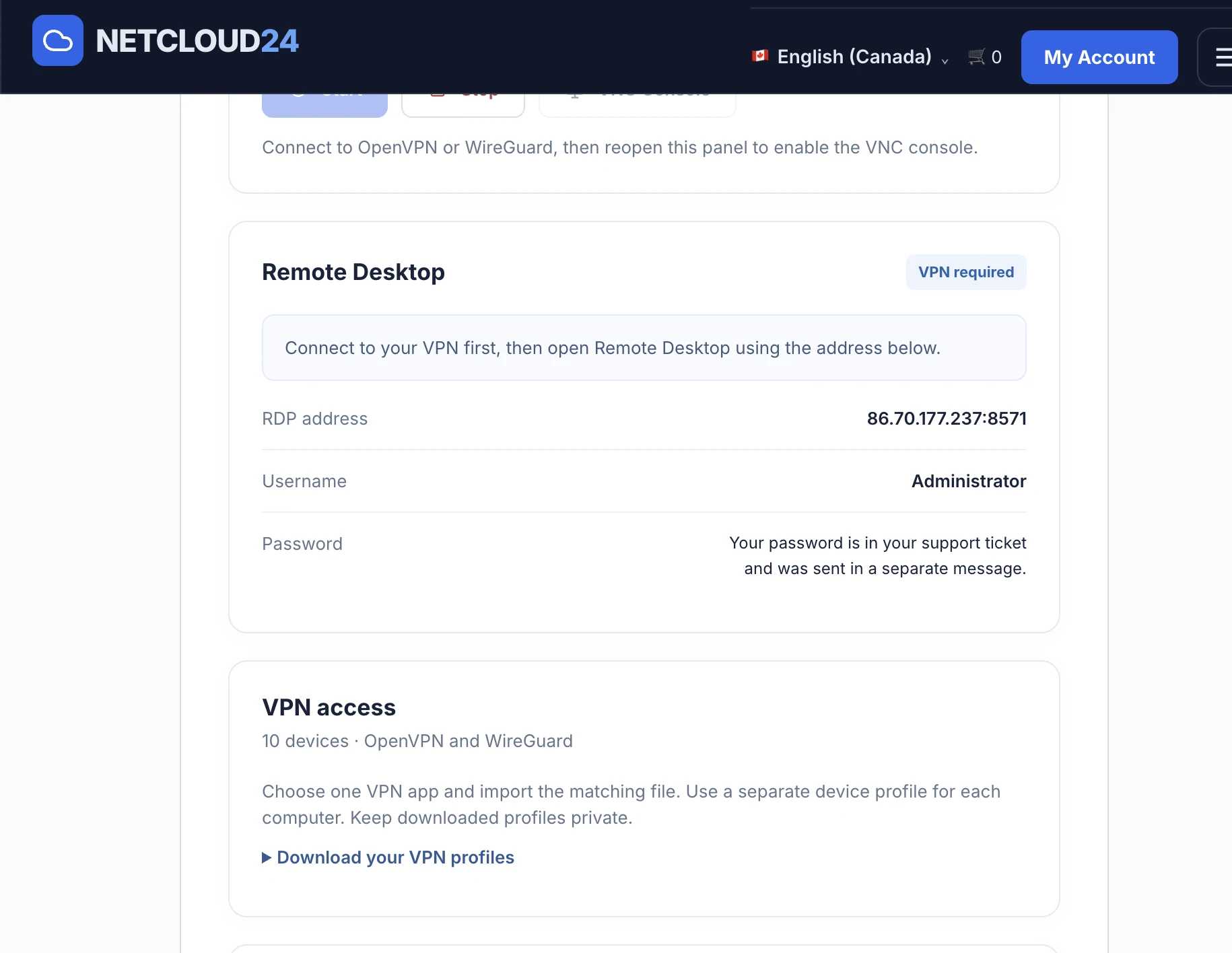
The panel illustration shows the relationship between VPN downloads and Remote Desktop information. Your own service supplies the actual destination and account details. Example addresses in screenshots are not a shared service endpoint.
Store the supplied files and credentials through the organisation's approved process. If a device is lost or a person leaves, tell the team promptly so the relevant access can be withdrawn. Deleting a shortcut on the laptop is not the same as revoking access.
PC users: connect the route, then open Windows
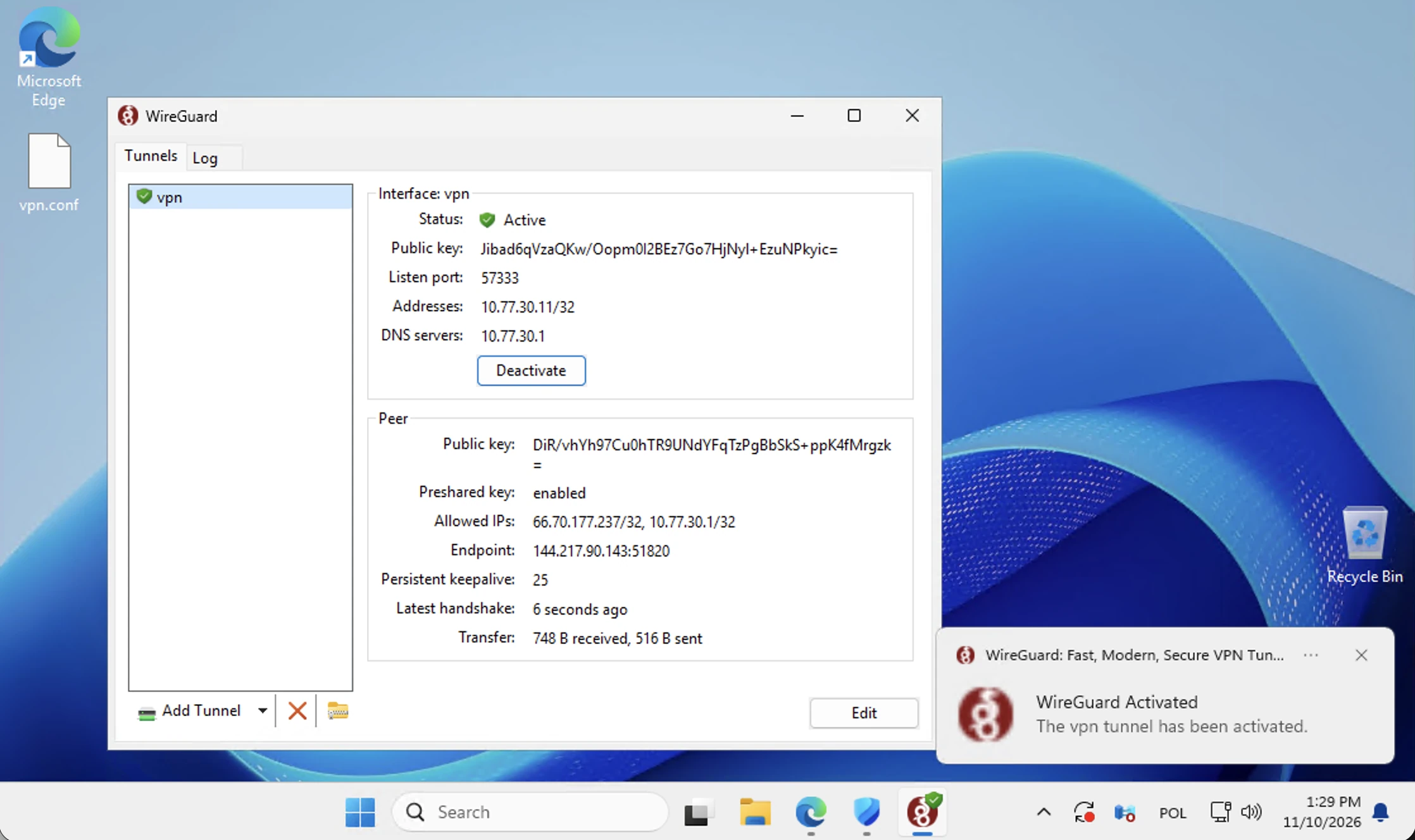
On Windows, import the supplied WireGuard profile into the official client and activate it before opening Remote Desktop. Check that the intended tunnel is selected; a different active VPN is not proof that the business route is available.
Open Remote Desktop Connection and enter the RDP destination provided for the service. Preserve any supplied port and gateway instructions. There is no need to publish a new server port from the local computer.
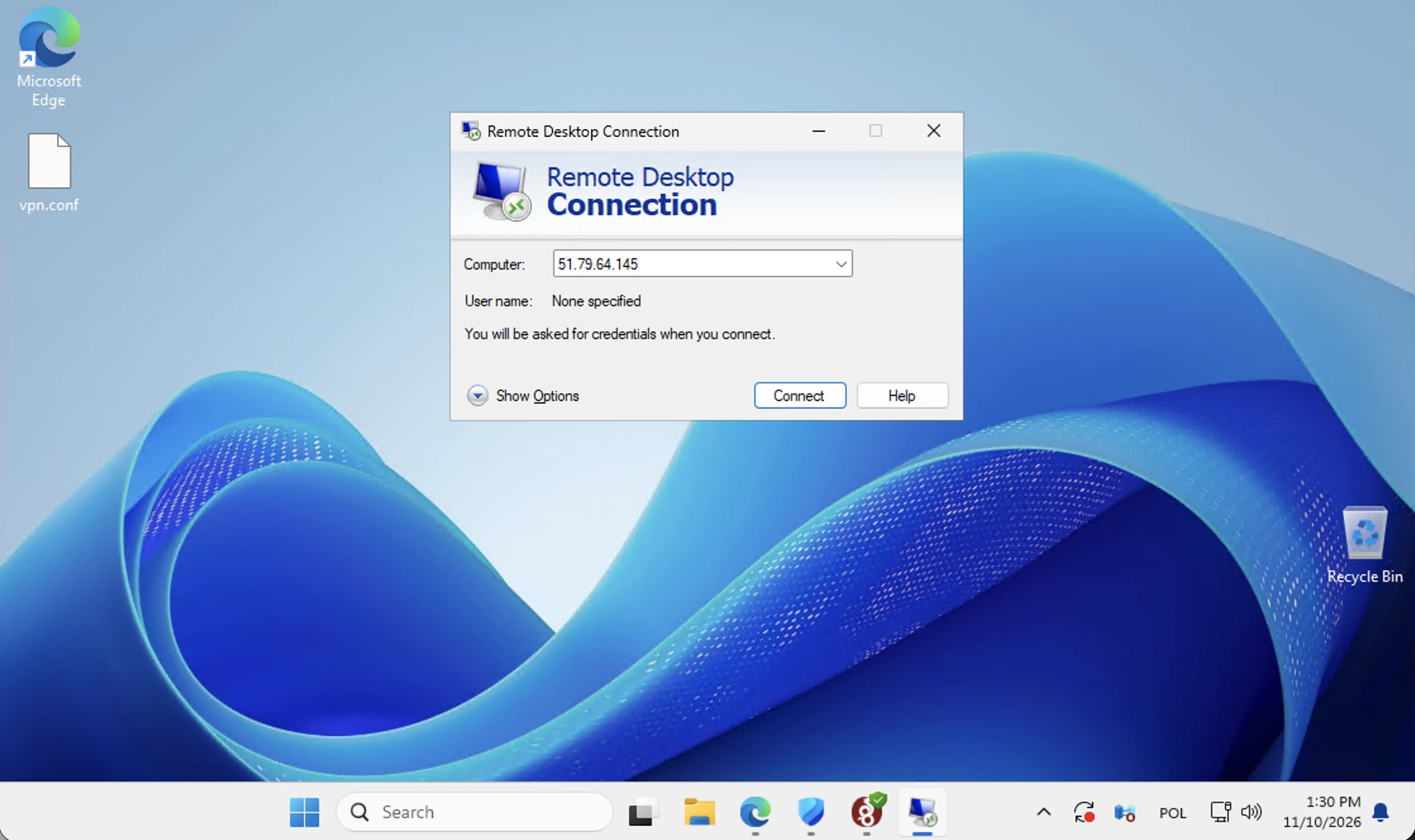
At the credential prompt, use your own Windows account. If the client offers a saved account belonging to a colleague or local computer, select the correct alternative and enter the supplied identity format.
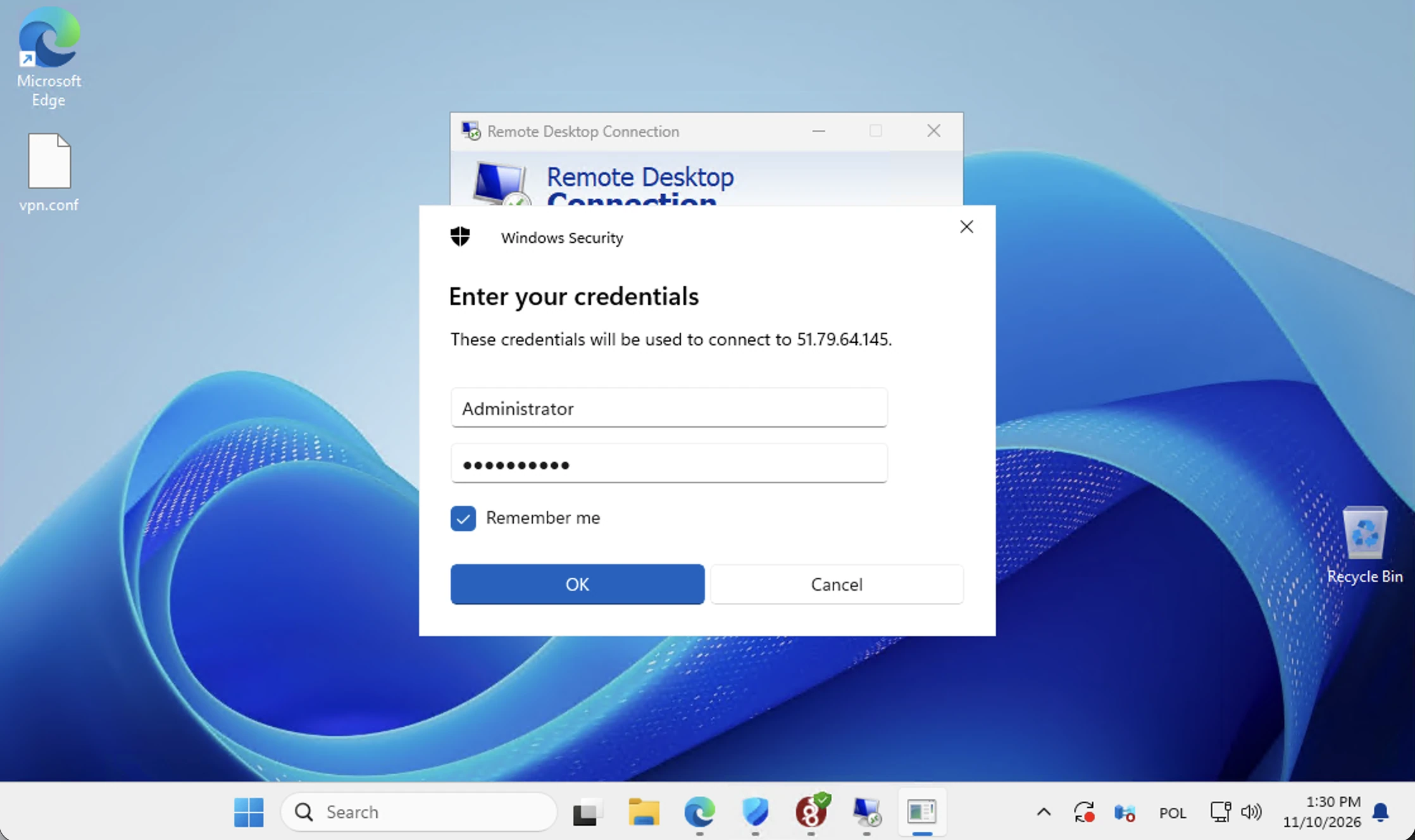
Review any certificate warning through the agreed endpoint information. An unexpected identity needs support confirmation rather than an instruction to accept every warning permanently. Password saving should follow the organisation's device policy.
Mac users: use the prepared profile and Windows App
Import the Mac's supplied WireGuard configuration and activate it. In Windows App, add the service as a remote PC using its RDP destination. A published workspace URL, if part of the specific service, has a different entry method and will be supplied explicitly.
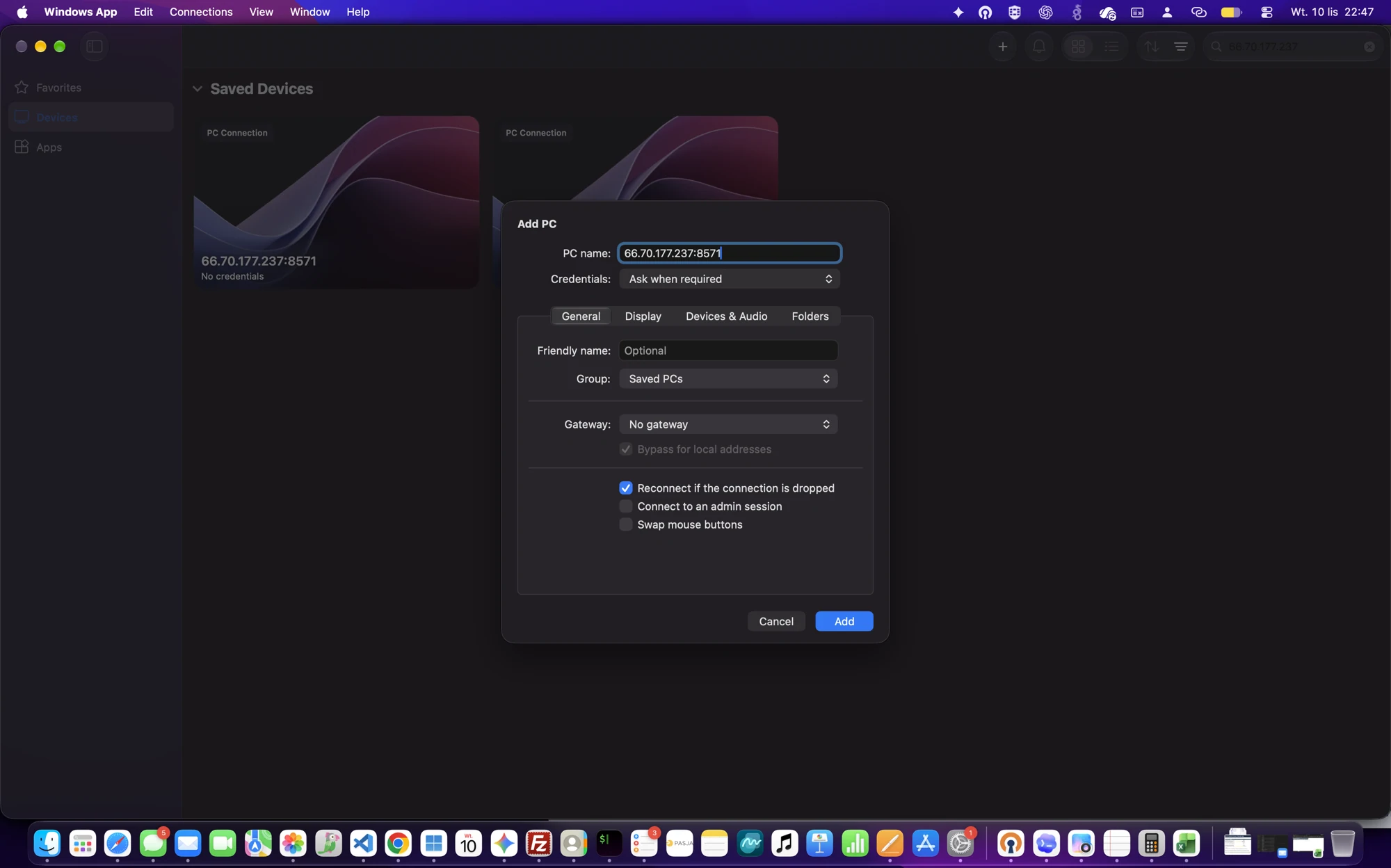
Open the saved connection and enter your individual Windows username and password. The customer-area login and Apple account are not substitutes for the assigned remote Windows identity.
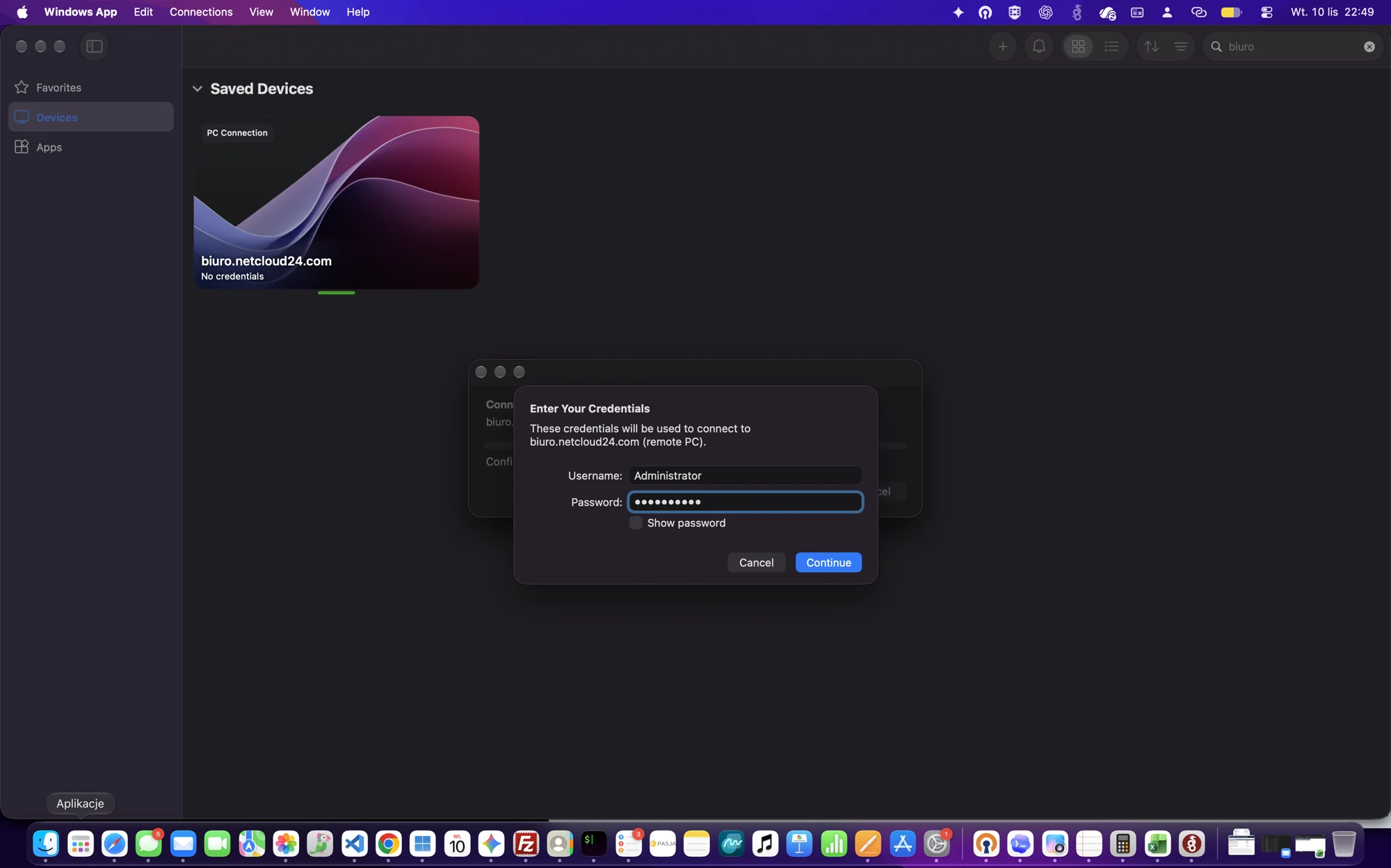
After connection, the server's Windows desktop appears inside Windows App. The Mac continues to run macOS underneath; company applications and their server data remain in the prepared environment unless an approved redirection or transfer explicitly moves them.

Use the agreed shared locations
Put team documents in the folders prepared for that purpose. Another employee's Desktop or private profile is not a suitable shared filing system. Access should follow job responsibilities, with users able to reach the resources they need and unable to browse unrelated confidential material.
Two users opening one file can encounter application-specific locking or editing behaviour. A central server does not automatically add collaborative editing to software that lacks it. Follow the application's supported workflow and report repeatable conflicts with the file type, operation and approximate time.
Check where exports are saved. A redirected local drive belongs to the connecting device and may have different backup and access arrangements from a company share. Do not assume a file is centrally protected merely because it was created while a remote session was open.
Handle printing and local devices deliberately
Some services permit printer, clipboard or folder redirection; others restrict it for security or compatibility. Tell Netcloud24 which functions the business requires. A missing redirected scanner or local printer is not necessarily repaired by installing random drivers on the server.
Test the agreed devices during onboarding using nonconfidential sample data. Verify the destination printer and output location before processing customer information. For a Mac, client capabilities and vendor drivers may differ from Windows even though the business application runs remotely.
Session habits that help the whole team
Save work frequently and sign out when you intend to close the session. Closing the connection window usually disconnects, leaving the session subject to its configured timeout. Long-running work should follow the application's agreed unattended processing design rather than relying on an abandoned desktop.
Never restart the server to resolve one slow session without the managed support process. Other colleagues may be actively working. Report whether the issue affects one user, one application or everyone, and provide the operation and time so resource or application evidence can be checked.
Use the PC connection walkthrough or Mac visual guide for the full local steps. Microsoft's RDS connection overview describes the supported client landscape; Netcloud24 supplies the service-specific access arrangement.
 Preparing RRAS for an agreed Windows Server gateway role
Prepare RRAS by choosing its gateway purpose, verifying platform support and interface design, installing only needed services, and testing…
 Providing controlled outbound IPv4 access with RRAS NAT
Configure traditional RRAS outbound NAT from the client’s full route, assign deliberate interface roles, verify actual translations and…
 Building a certificate-validated IKEv2 remote-access service
Design an IKEv2 service around gateway and EAP certificate validation, narrow NPS authorisation, managed client provisioning and external…
 Connecting two routed sites through an RRAS IKEv2 interface
Connect two sites using an RRAS IKEv2 interface with machine certificates, complementary subnet routes and matched responder policy, then…
 Introducing NPS as a controlled RADIUS authority
Introduce NPS with distinct AD registration and RADIUS peer trust, narrow policy matching, current integrity and certificate requirements,…